-2-(3).png)
How to Set Up the Welcome Screen
The Welcome Screen is the first thing your guests see when they open the event link or scan the QR code.
Here you can add a short greeting and instructions to guide guests before they upload photos.

Step 1 — Open Your Event
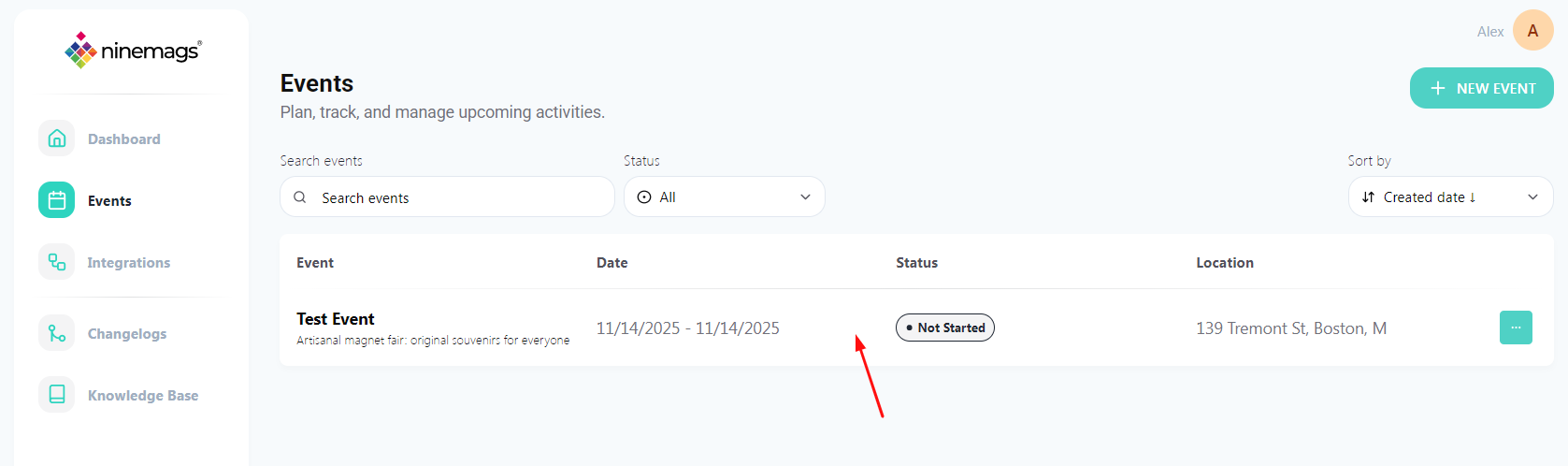
Go to Events in the left sidebar.
Click the event you want to customize.
Step 2 — Open “Text & Overlays”
Inside the event, look at the left sidebar.
Click Text & Overlays.

Step 3 — Edit the Welcome Screen Text
In the Welcome Screen section, you can customize the text shown to guests.
Available fields:
-
Title — the main welcome message
(for example: “Welcome to Our Event!”)
-
Subtitle — a short explanation or instruction
(for example: “Upload your photos to create a custom magnet”)
Click inside each field and enter your own text.
Changes are saved automatically.
Step 4 — Choose how guests can upload photos
Open Settings in the left sidebar of the event.
In the Upload Methods section, you can enable:
- Camera — guests can take a photo directly
- Gallery — guests can upload photos from their phone
You can enable one option or both options.
The Welcome Screen will automatically show only the upload methods you enable here.
For example:
- If only Camera is enabled — guests will see only the camera option.
- If both are enabled — guests will see both options on the Welcome Screen.

Step 4 — Set when the upload link is active
In Settings, scroll to the Access section.
Here you can control when guests are allowed to open the upload link.
Available options:
-
By event status
The link is active only when the event status is In Progress and inactive otherwise.
-
Custom
You can manually set a start and end date/time when the link is available.
-
No access
The upload link is completely disabled for guests.
This is useful if you want to:
- Open uploads slightly before the event starts
- Keep uploads open after the event ends
- Fully close access when needed

Important:
If you choose "By event status" option, make sure to check the current event status.
The status must be set to In Progress for guests to upload photos.
You can change the status in the top-right corner of the event page.

Step 5 — Preview the guest experience
Open your event link or scan the QR code to see the Welcome Screen as guests see it.
You will see:
- Your custom title and subtitle
- Only the upload buttons that are enabled in Settings

Tip
If guests report that they cannot upload photos, double-check:
- The event status is set to In Progress
- At least one Upload Method is enabled in Settings