-2-(3).png)
How to Collect Guest Emails and Phone Numbers
How to collect guest emails and phone numbers
What this is
In NINEMAGS Live you can collect guests' email addresses and phone numbers at your event. Each one is enabled and configured separately, so you can collect emails, phone numbers, or both — depending on what you need.
Collected data is stored in your dashboard and can be exported any time.
Why collect guest contacts
Collecting emails and phone numbers lets you:
- Help guests find their photos after the event.
- Build your customer list for future events.
- Follow up with marketing campaigns.
- Track which guests uploaded which photos.
- Reprint specific photos for a guest if needed.
- Tell whose magnet is whose on the spot — if you also print contact info on the magnet itself (see the guide on text around the photo).
Step 1: Open the event's settings
- Open NINEMAGS Live.
- Open the event you want to set up.
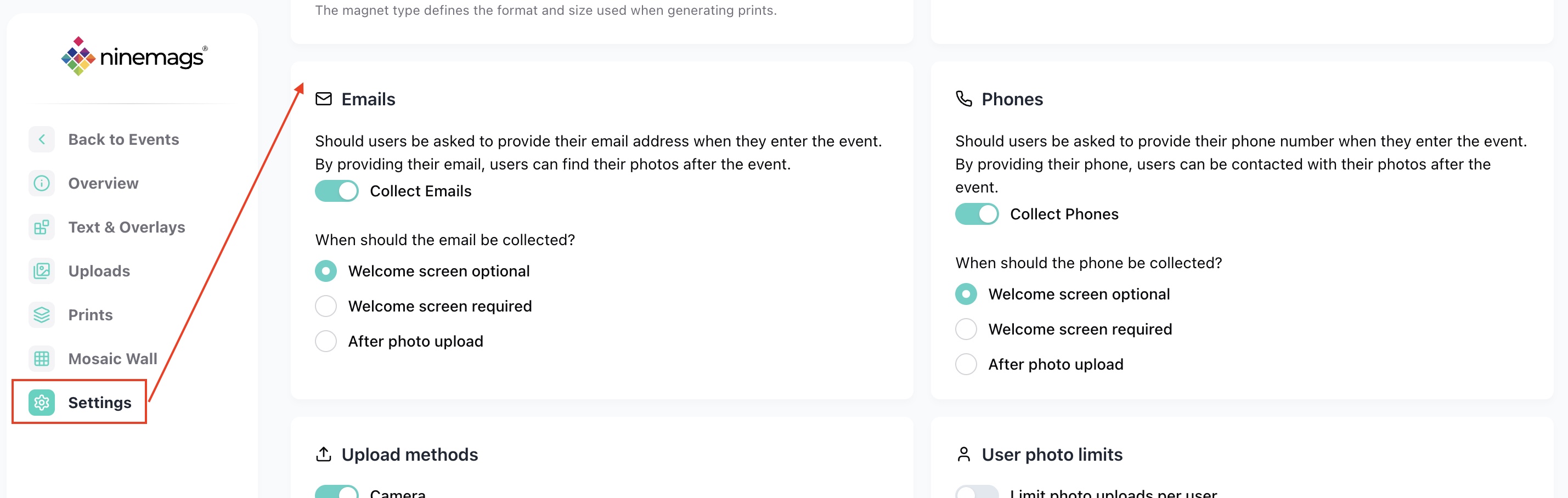
- In the left menu, click Settings.
- Scroll to the Emails section. The Phones section is right below it.
Step 2: Enable Emails and/or Phones
Each section works independently. Turn on the one(s) you need.
For emails:
- Toggle Collect emails on.
For phone numbers:
- Toggle Collect phones on.
You can enable just one or both.
Step 3: Choose when to ask for it
For each enabled type, choose when the guest will be asked:
- Welcome screen optional — the field is shown on the welcome screen, but the guest can skip it.
- Welcome screen required — the guest must fill it in before they can use the event.
- After photo upload — the field is shown after the guest uploads their photo.
You can mix modes — for example, ask for the email as required on the welcome screen, but ask for the phone after upload.
Click Save Changes.

What guests see
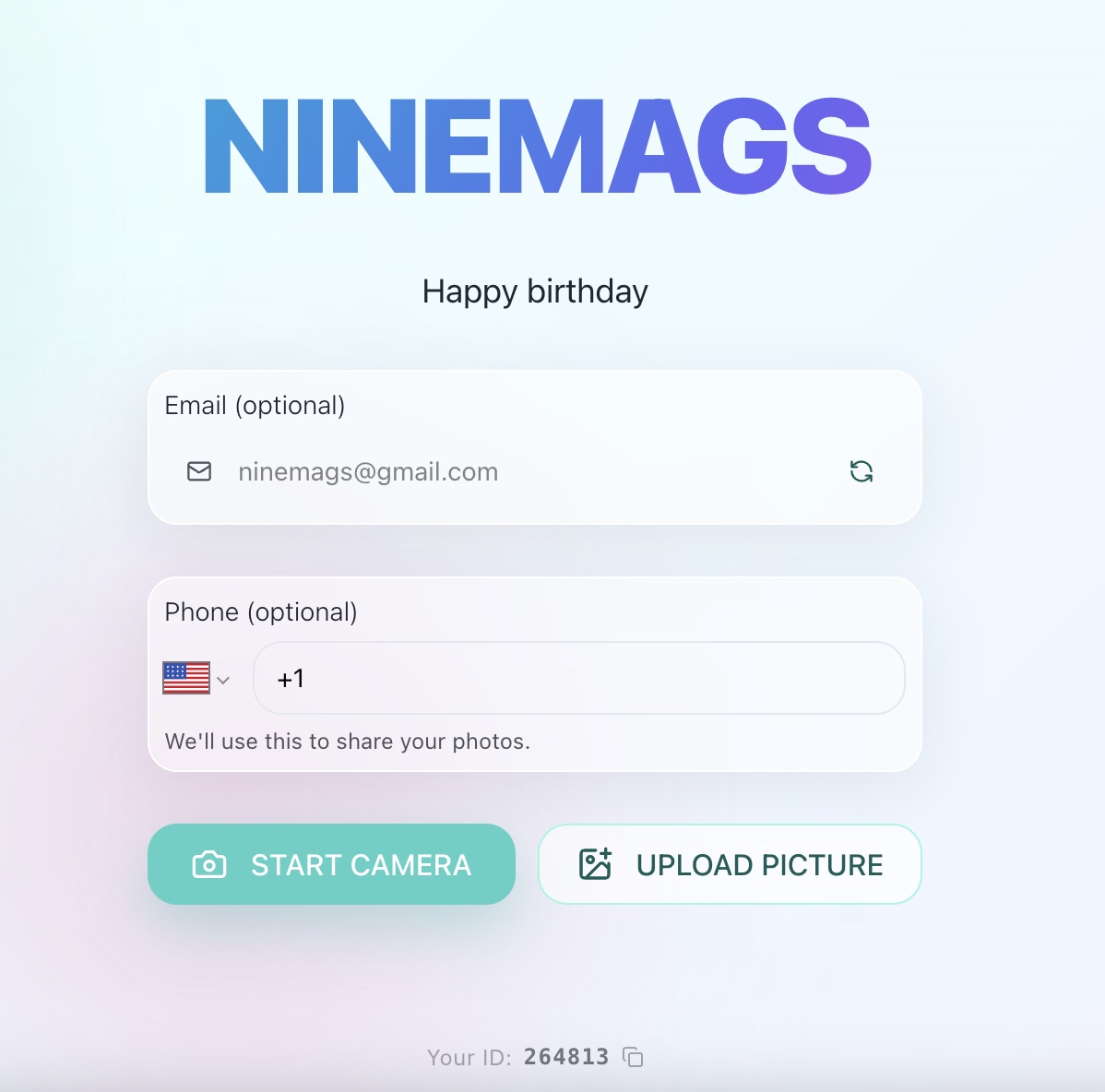
If you collect both emails and phones on the welcome screen, the guest will see two fields — one for the email, one for the phone number. They fill in whichever fields are required and proceed to upload their photo.
If you set them to be shown after photo upload, the guest first uploads a photo, then sees the email and/or phone fields.
Where to view collected data
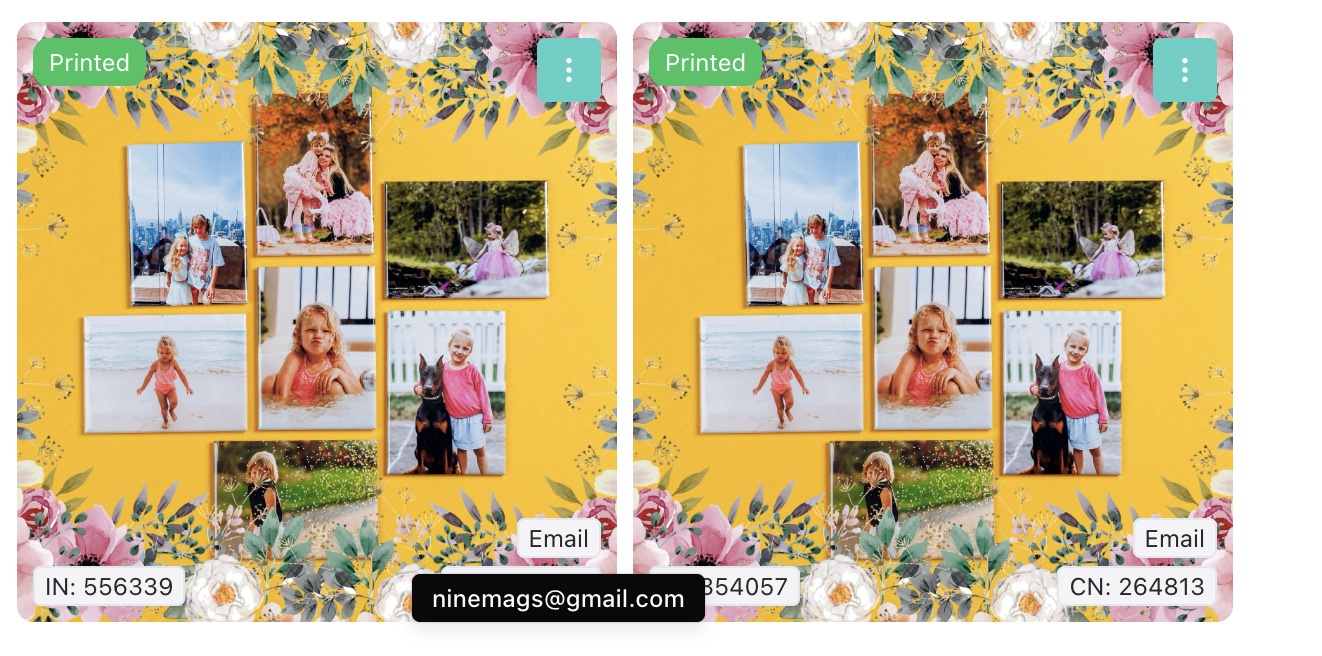
In the event's Uploads tab. Each uploaded photo carries the contact info of the guest who uploaded it.
- Hover over the email icon on an upload — the guest's email appears.
- Hover over the phone icon — the guest's phone number appears.
- Each upload also shows the Customer number and Image number.
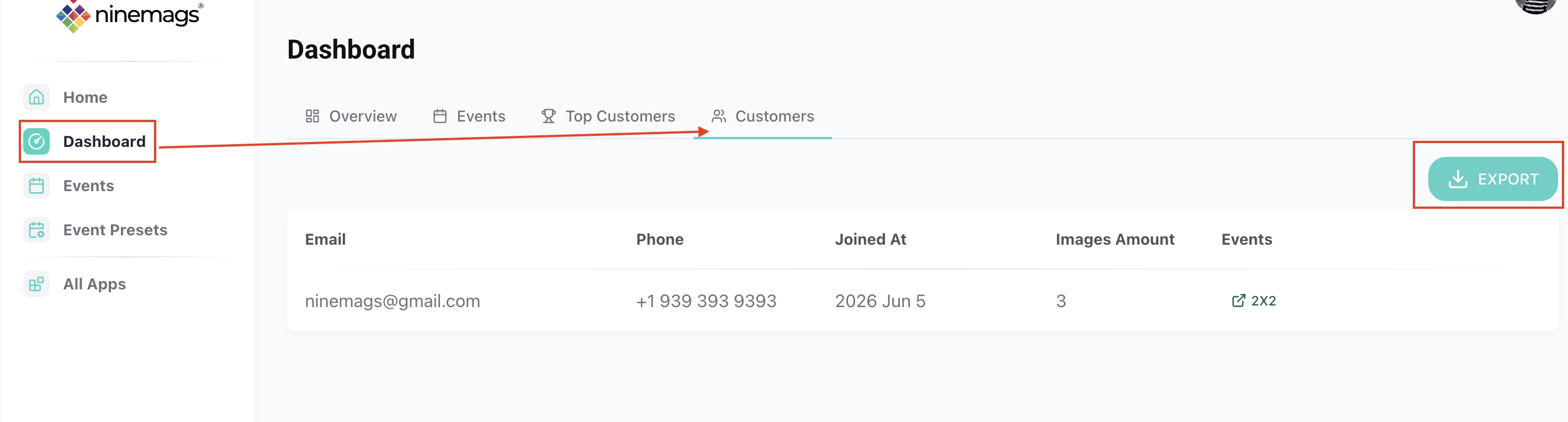
In the Dashboard's Customers section. A full list of guests who shared their contact info, with:
- email and/or phone number,
- join date,
- number of uploaded images,
- events the guest took part in.
You can click an event to see related uploads, and export the full list using the Export button.
Filtering uploads
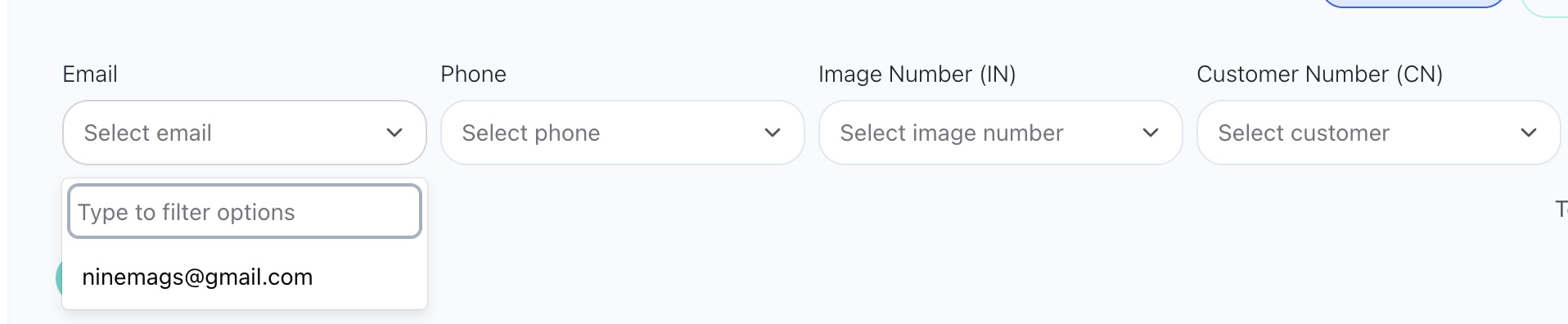
Inside the event's Uploads tab, you can filter to find specific photos. Filter by:
- email,
- phone number,
- customer number,
- image number.
You can pick a value from the dropdown or type it in manually.
Once filtered, you see only the matching uploads — useful for:
- reviewing one guest's photos;
- printing only their images;
- using Print All for a specific guest's batch.
Good to know
- Emails and phones are enabled per event, independently.
- Each one can be optional, required, or asked after upload.
- Contact info is automatically linked to the guest's uploaded photos.
- All data can be exported from the dashboard.