-2-(3).png)
How to Edit an Event
You can easily edit any event you’ve created in NINEMAGS Live.
This allows you to update event details, change dates, modify templates, or update the event status at any time.
Step 1 — Open the Event
-
Open the Events section from the left sidebar.
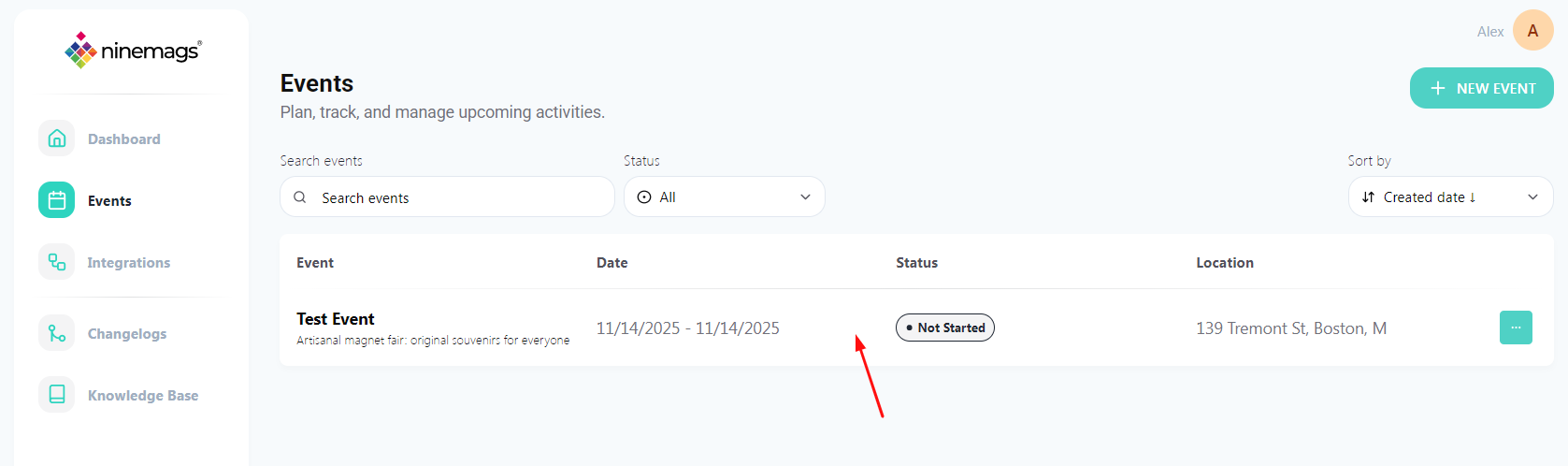
- Click on the event you want to edit.
Step 2 — Edit the Event’s Main Information
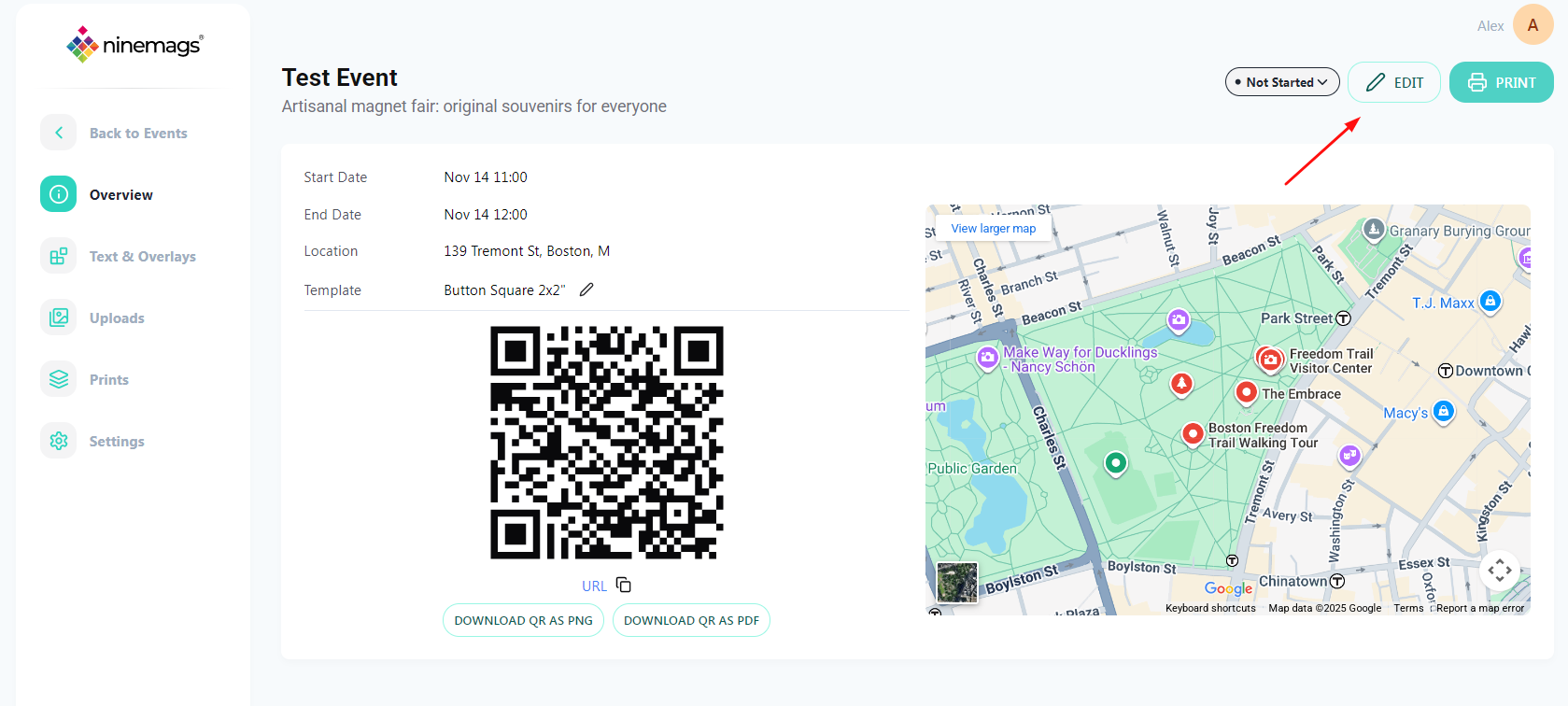
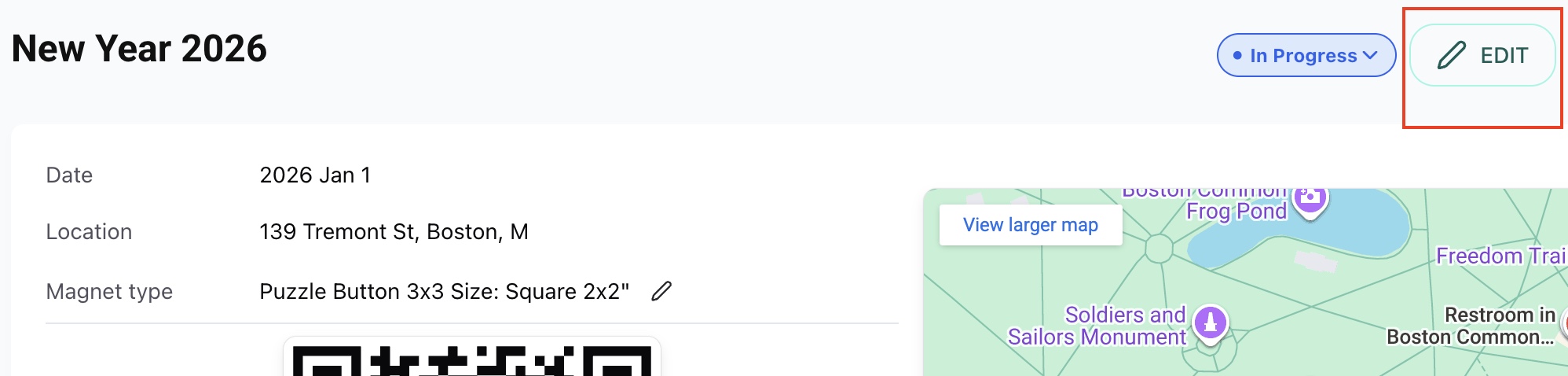
- On the event page, click the Edit button (pencil icon) in the top-right corner.
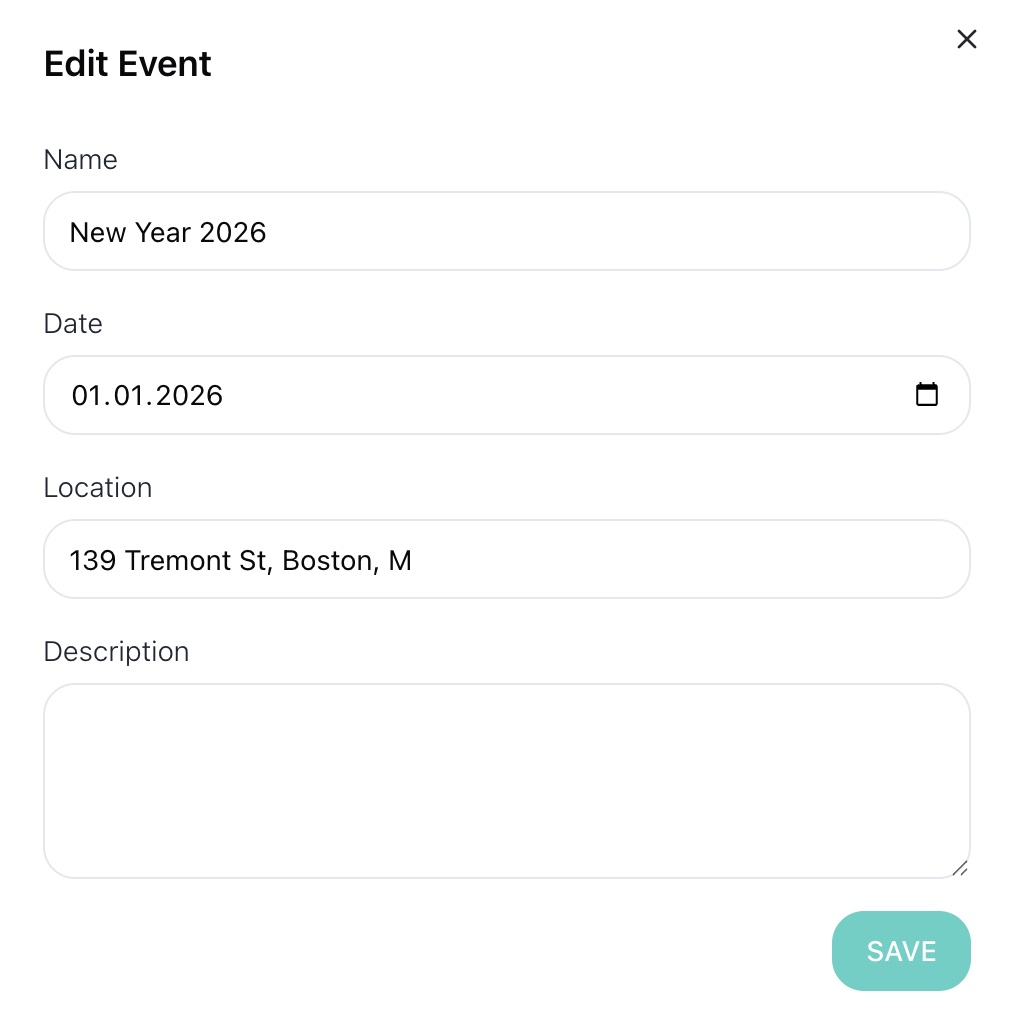
- The Edit Event window will open.
Here you can update the following fields:
- Name — event name
-
Date — event date
Click the calendar icon to select the event date.
- Location — event location or venue
- Description — short description of the event
When you’re done, click Save to apply the changes.
Step 3 — Edit the Template (Type, Paper, Size)
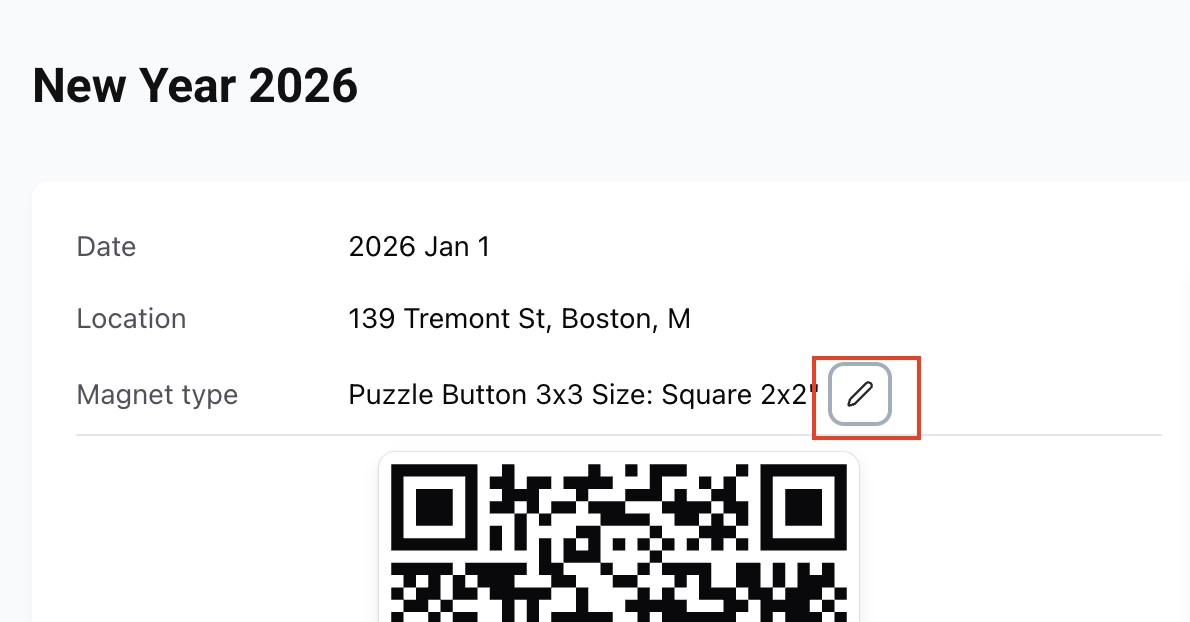
- On the event page, stay in the Overview tab.
- Find the Template section.
- Click the pencil icon next to the template.
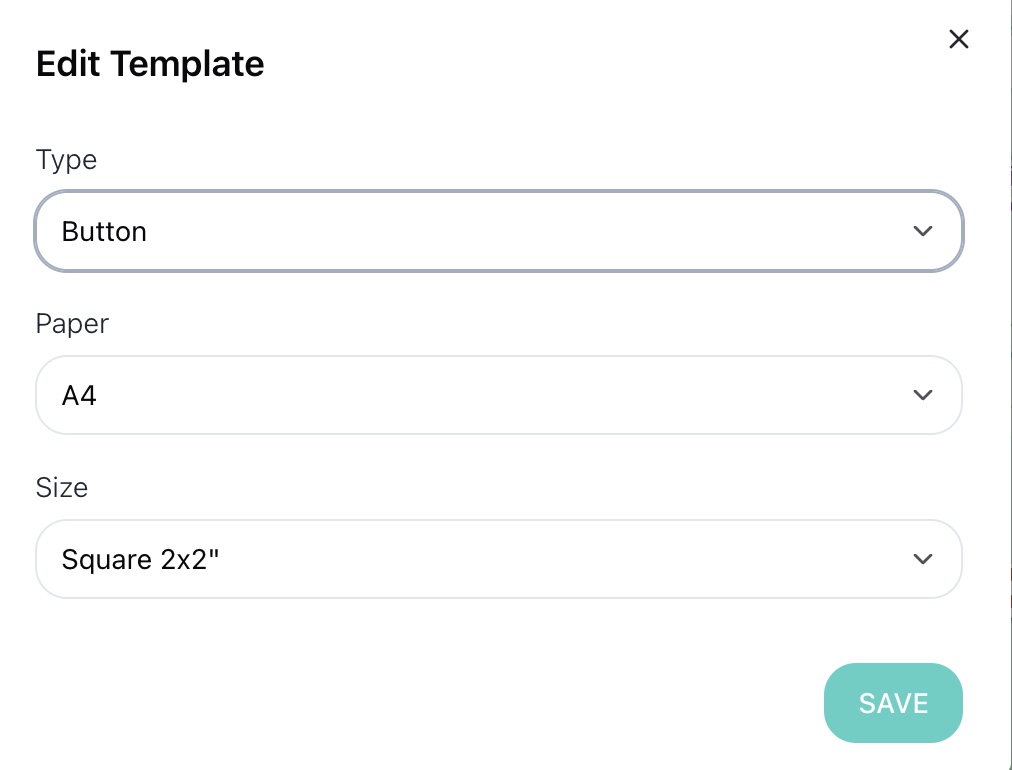
In the Edit Template window, you can update:
- Type — product type (for example: button, magnet, sticker)
- Paper — paper format
- Size — product size
Click Save to confirm your changes.
Step 4 — Update the Event Status
-
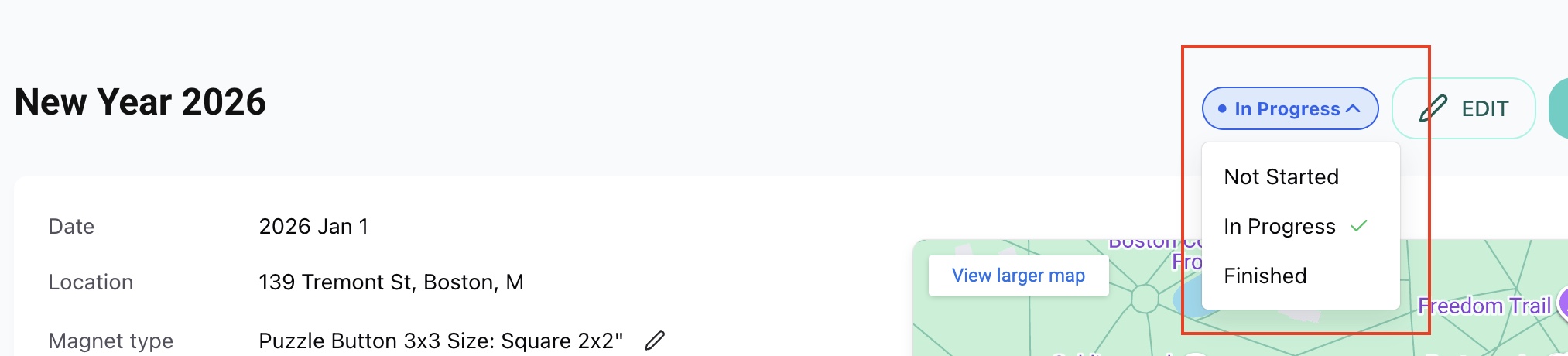
In the top-right corner of the event page, click the status dropdown (for example, Not Started).
Select one of the available statuses:
- Not Started
- In Progress
- Finished
The status updates instantly.
Done!
Your event updates are saved automatically and applied immediately.
You can return to editing the event at any time or manage all events from the Events list.