-2-(3).png)
How to Save & Download Original Photos
NINEMAGS® Live can keep the original version of every photo uploaded to an event, alongside the cropped and framed version.
This is useful when you want to keep the photo exactly as it was uploaded, so you still have the original file if you need it later.
Before You Start
Keep in mind:
- Original photo saving is turned off by default.
- The setting is enabled separately for each event.
- It applies only to photos uploaded after you turn it on.
- Original photos are full-size files and use more storage.
Step 1. Open Your Event Settings
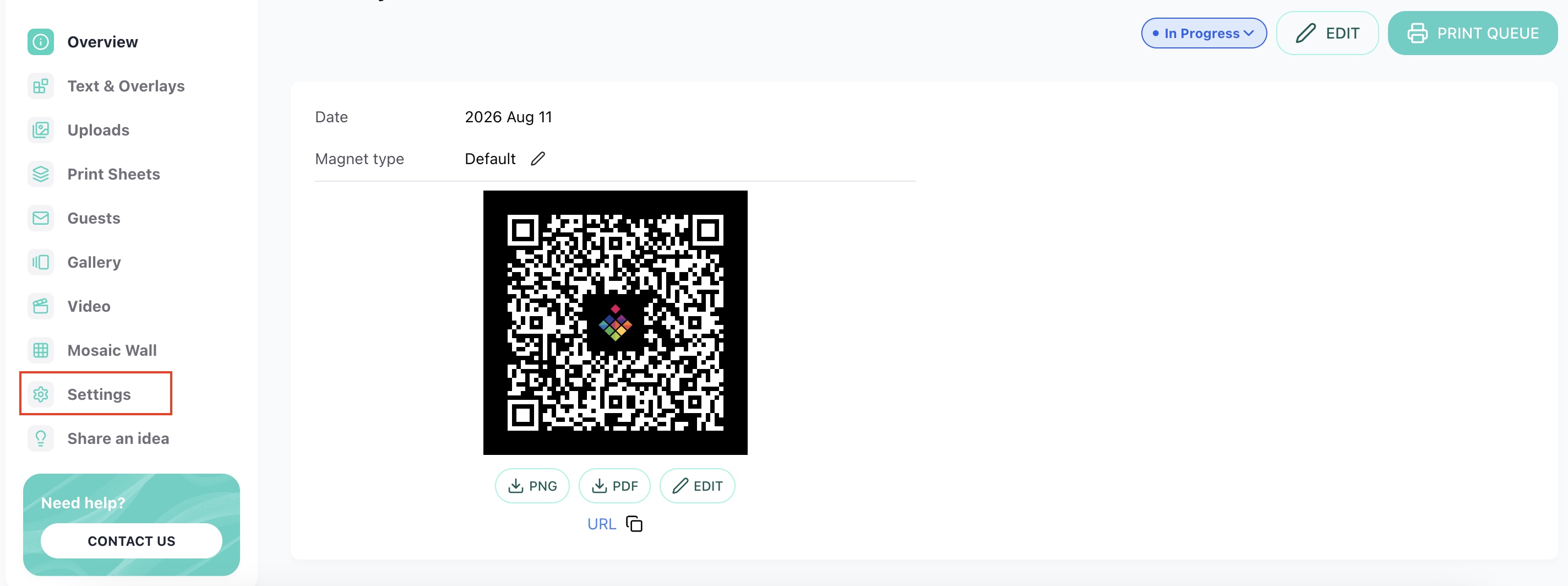
Open the NINEMAGS® Live event where you want to save original photos.
Go to Settings.
Step 2. Turn On Original Photo Saving
Find the Original photos section.
Turn on Save original photos.
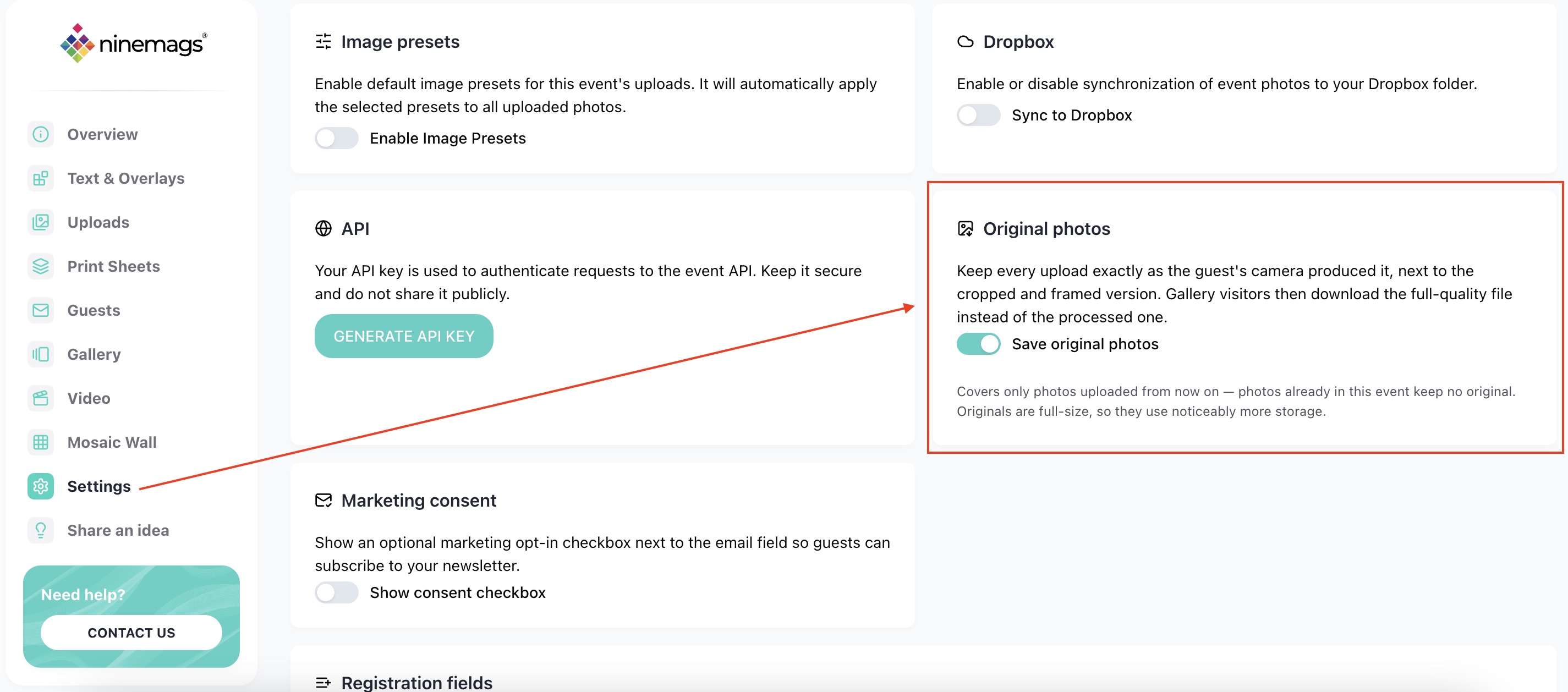
Once enabled, NINEMAGS® Live will keep the original version of each new photo uploaded to this event alongside the processed version.
Step 3. Download an Original Photo
When you need the original version of a photo:
- Open the Uploads section of your event.
- Find the photo you need.
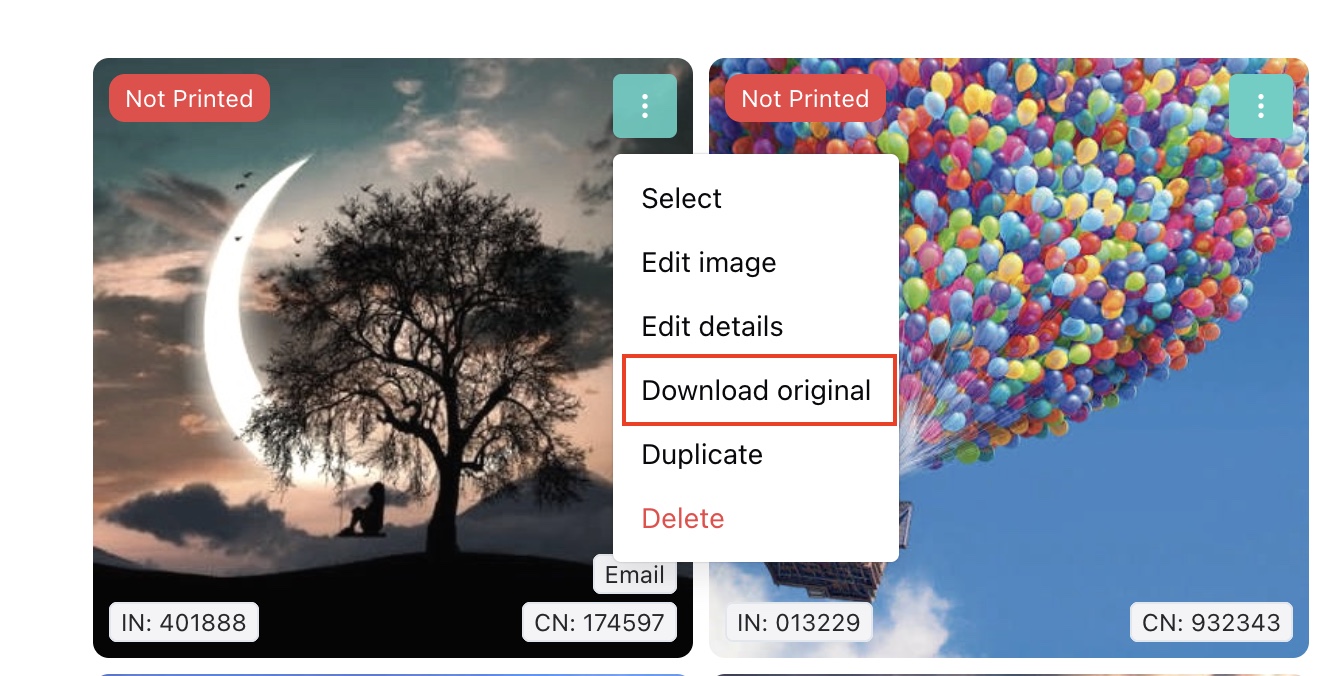
- Click the three-dot menu on the photo.
- Select Download original.
The original photo will be downloaded without the cropping or framing applied in the event.
Important
This setting is not retroactive.
Photos that were uploaded before you enabled Save original photos will not have an original version saved.
The setting applies only to the current event, so enabling it in one event does not affect your other events.
Because original photos are saved in full size, they can use noticeably more storage.
Done!
NINEMAGS® Live will now keep the original versions of new photos uploaded to this event.
Whenever you need an untouched version, you can download it directly from the photo menu in Uploads.