-2-(3).png)
How to Generate a Video from Your Gallery Photos
NINEMAGS® Live can turn the photos from your event gallery into a ready-to-share video. This guide shows how to generate, customize, and publish it.
Before you start
Your gallery must be published — the video is built from a published gallery.

Generate the video
-
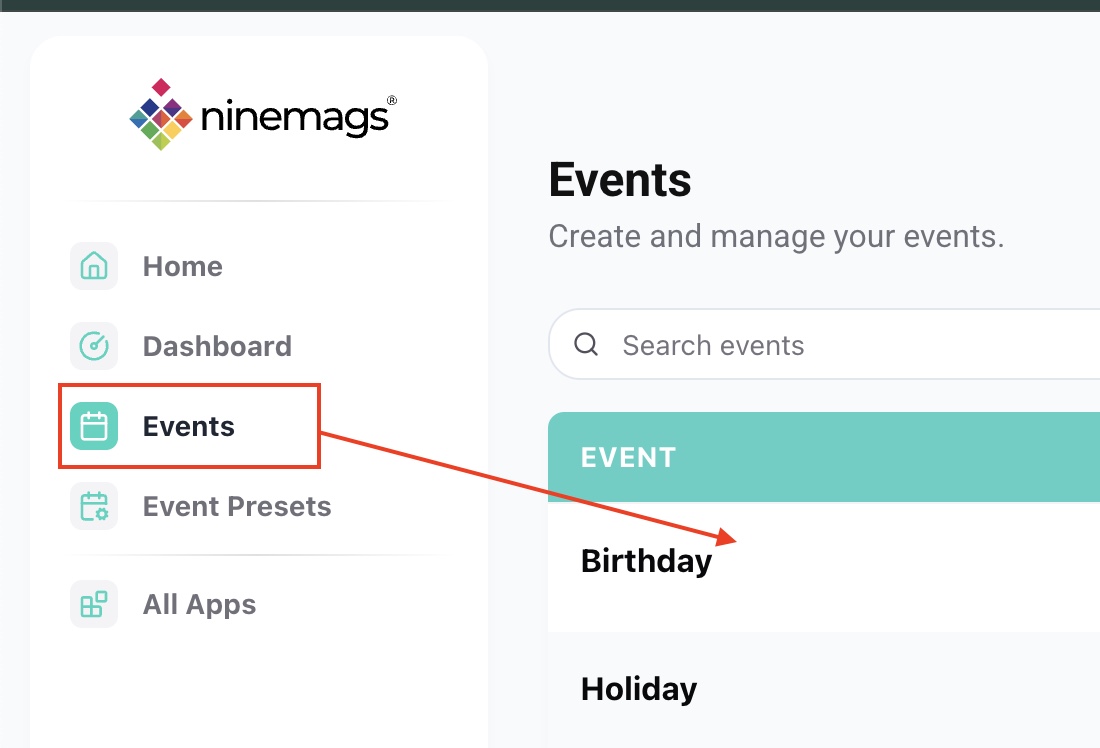
Go to NINEMAGS Live → Events and select the event you need.
-
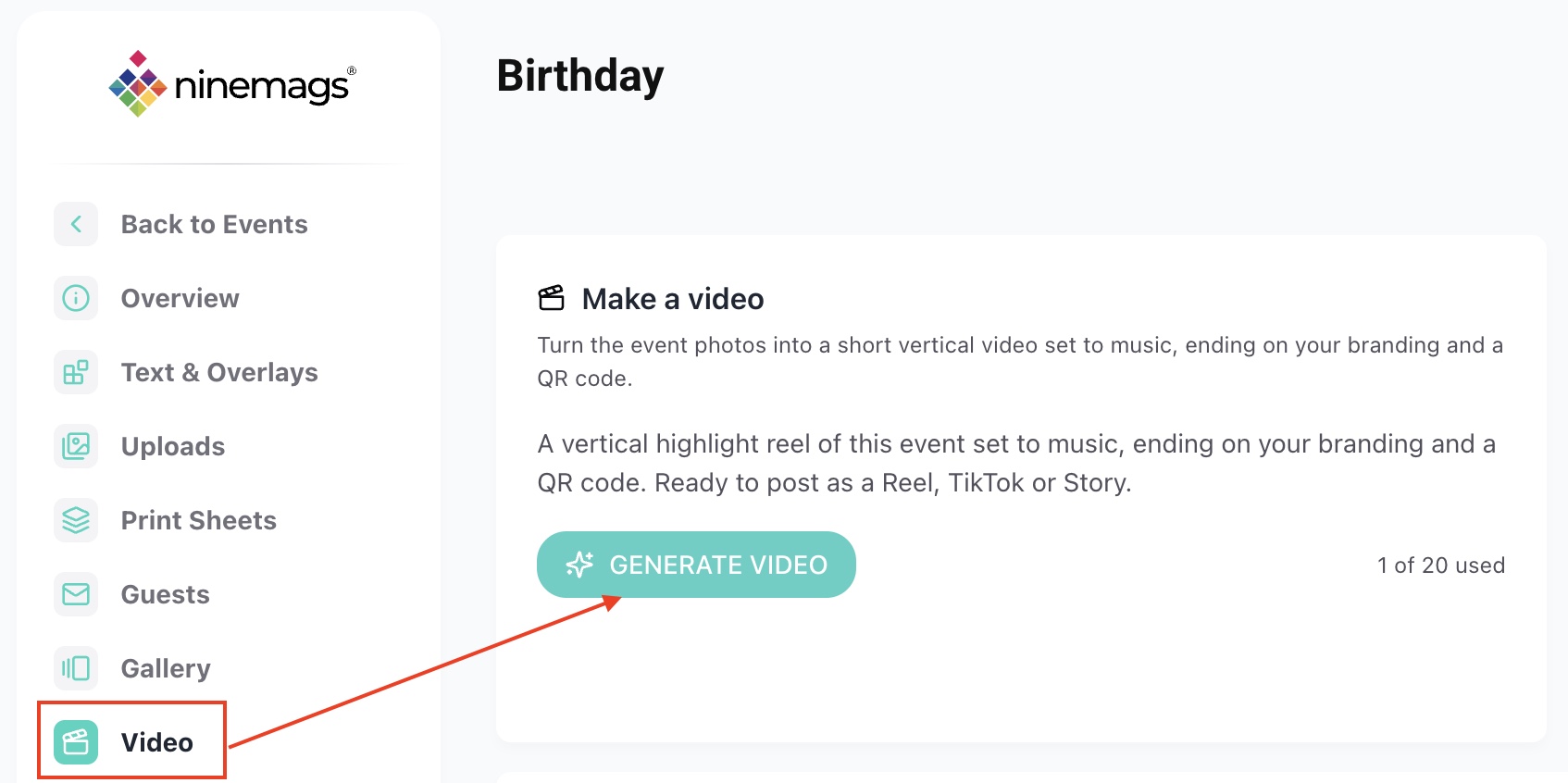
Open the Video tab and click Generate Video.
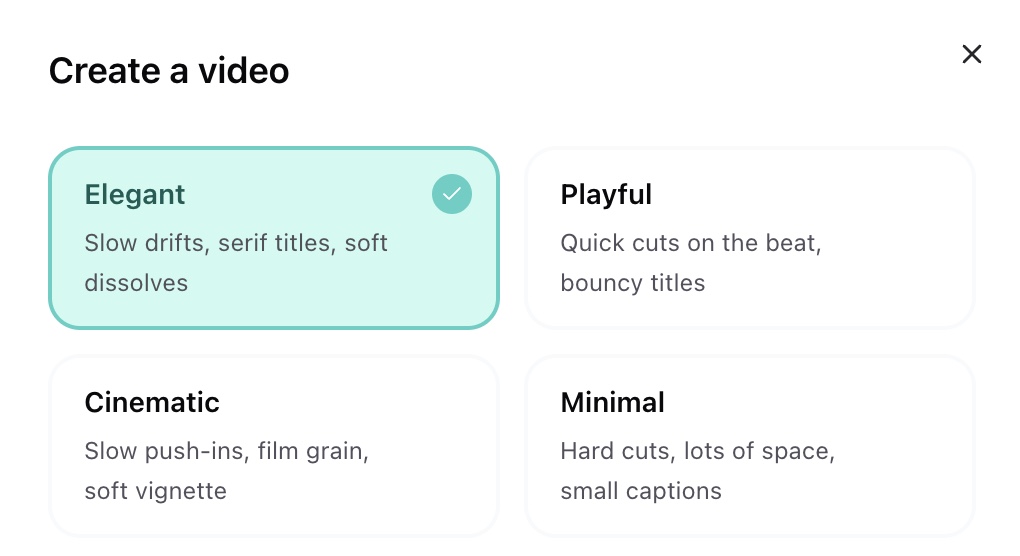
- Choose a style for your video:
- Elegant — slow drifts, serif titles, soft dissolves.
- Playful — quick cuts on the beat, bouncy titles.
- Cinematic — slow push-ins, film grain, soft vignette.
-
Minimal — hard cuts, lots of space, small captions.
-
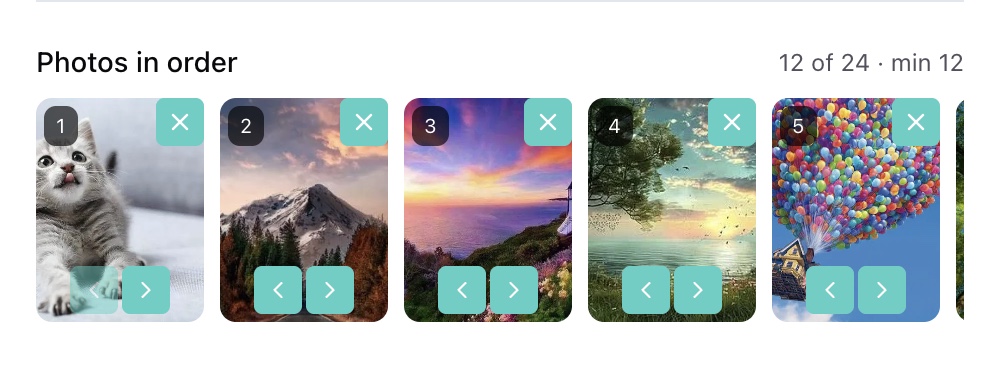
Review the photos from your gallery. Remove or rearrange them as needed. You can select up to 24 photos.
-
Choose music for the video, then tick the checkbox confirming you have the rights to it. Both are required — the Make the video button stays disabled until you select music and tick the box.
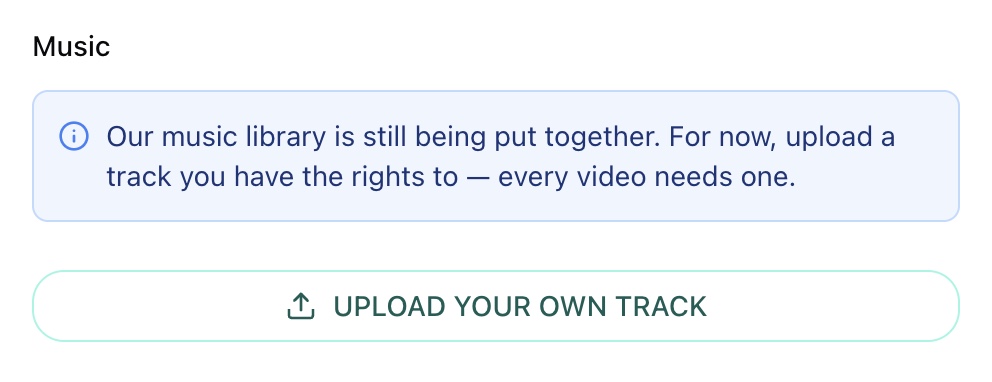
- Set your text and QR options:
-
Opening title, opening subtitle, closing message, and business name.
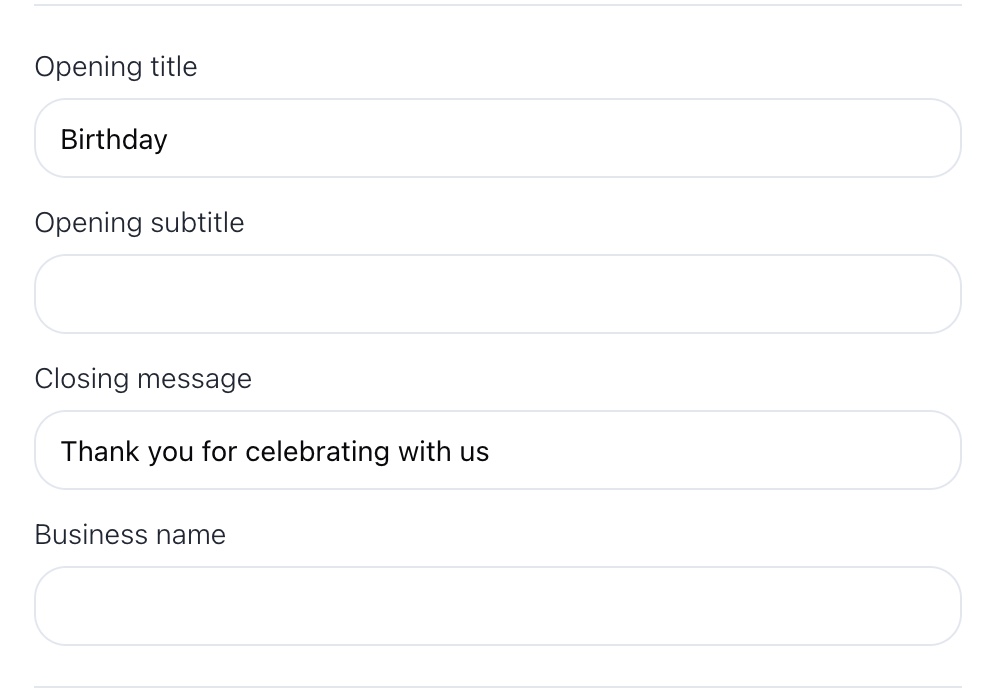
-
Where the QR code leads: the event gallery, your store, or a link of your choice.
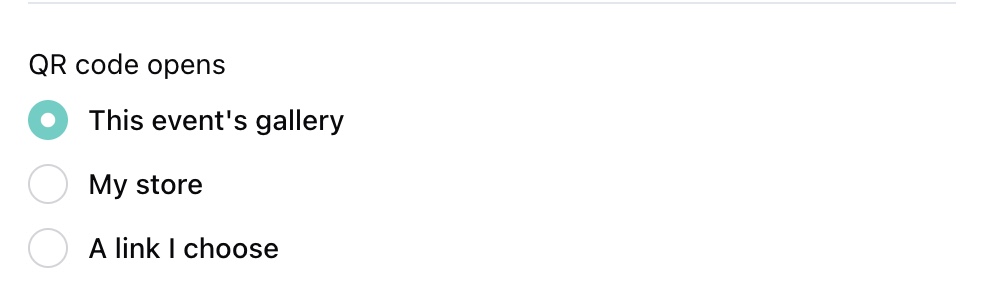
-
-
Click Make the video. Generation usually takes 5–10 minutes.
-
When the video is ready, play it back. You can then delete, download, or publish it.
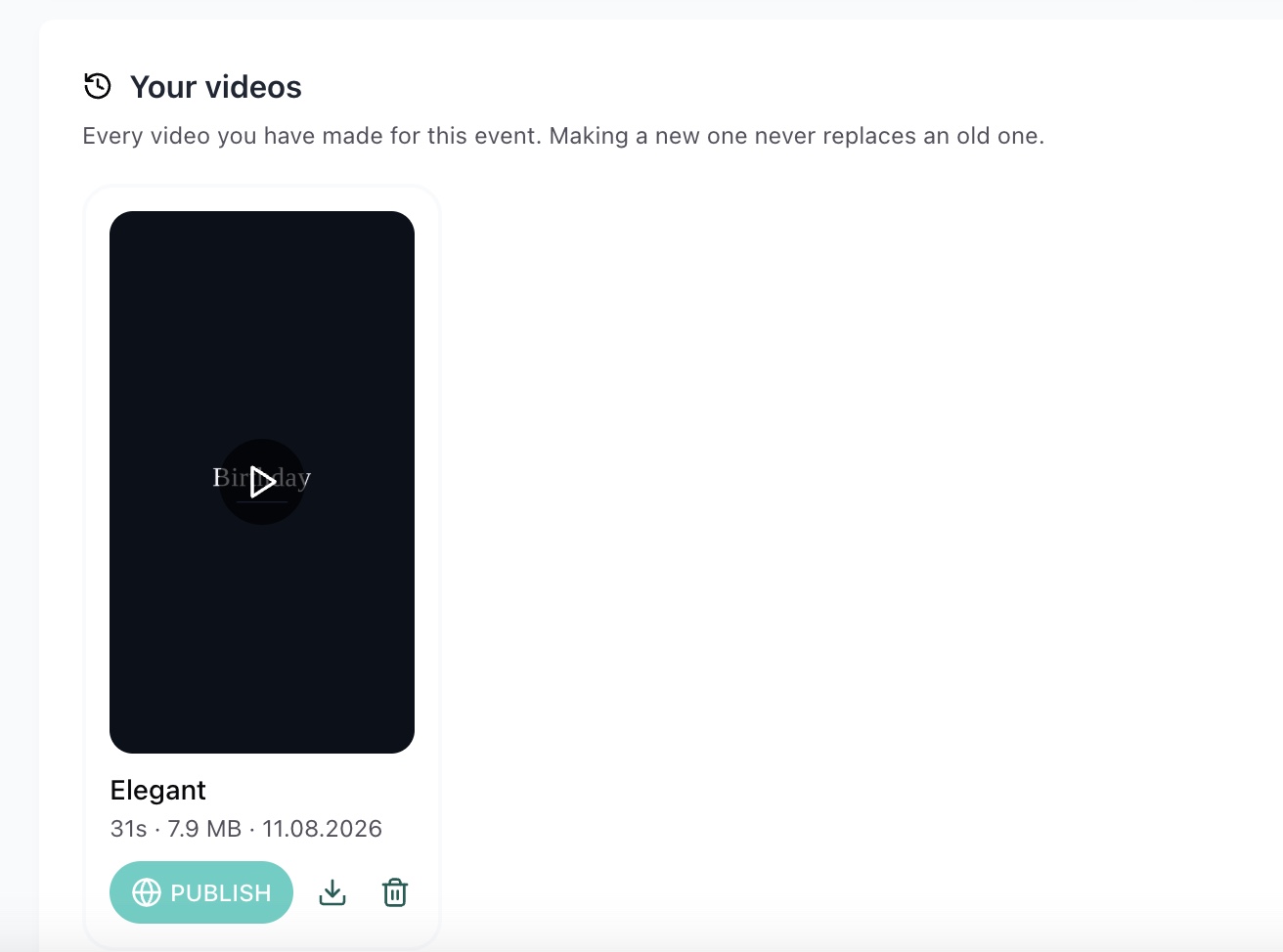
-
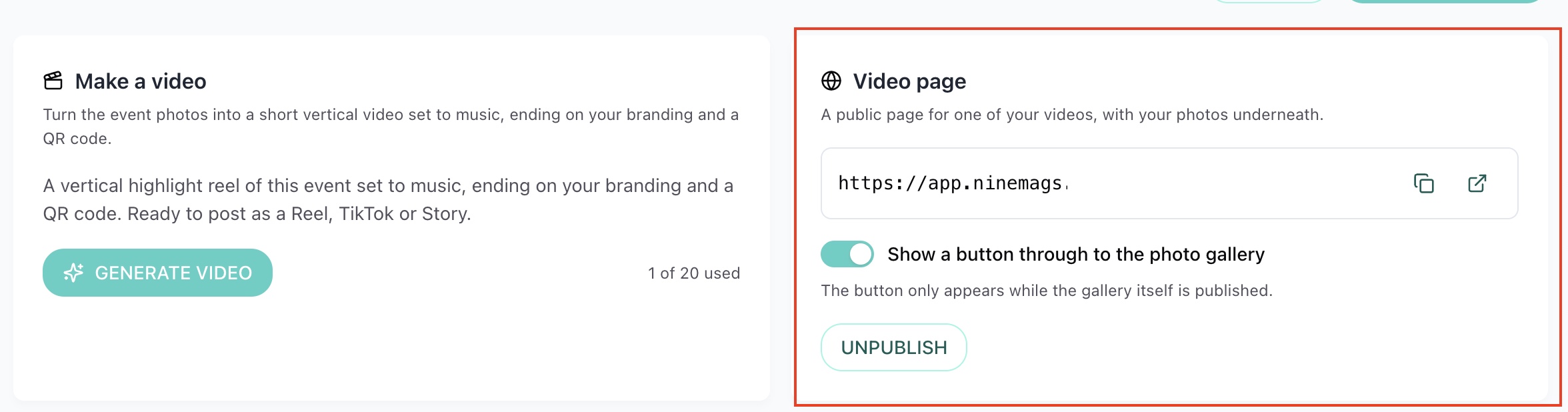
After you click Publish, a link to your video appears. From there you can view all the photos used in the video, download the video, or open the gallery.
A video requires music, and you must tick the checkbox confirming you have the rights to it — otherwise the Make the video button stays disabled. Keep in mind that Instagram and TikTok may block videos that use music you don't have the rights to, so if you plan to post your video on social media, use music you own.