-2-(3).png)
How Dropbox Works in NINEMAGS
Dropbox in NINEMAGS is used for automatic file transfer and for creating and storing final print-ready templates.
All files uploaded by customers and processed by NINEMAGS are saved in Dropbox.
Why Dropbox Is Used
Dropbox is the final storage for production files.
It is used to:
📁 automatically collect files for each order
🖨 send print-ready templates to production without manual export
🧾 store original uploads and final print files
🔄 prevent errors and confusion with customer files
📌 Important: Dropbox is not for customers.
It is used only by you and your production team.
How NINEMAGS Sends Files to Dropbox
The entire process is fully automated:
- The customer uploads images using NINEMAGS
-
The customer places and pays for the order
NINEMAGS:
- processes the images
- applies the selected template, sizes, and other settings
After processing:
- the files are uploaded to Dropbox
❗ No manual uploads are required.
How to Check If Dropbox Is Connected
Before NINEMAGS can send order files to Dropbox, make sure the integration is connected correctly.
Where to Check the Connection Status
- Open Shopify Admin
- Go to Apps → NINEMAGS
- On the app’s main page, find the Info block
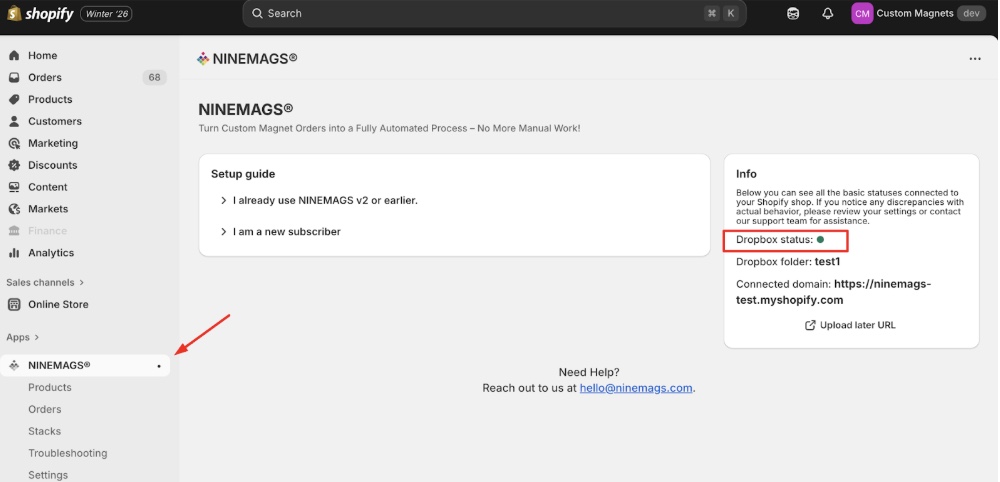
You should see:
-
Dropbox status: 🟢 (green indicator)
→ means Dropbox is successfully connected
- Dropbox folder — the name of the folder in your Dropbox where orders are saved
- Connected domain — your Shopify store domain
If Dropbox Is Connected Correctly
- the status indicator is green
- the Dropbox folder is shown
- no errors or warnings are displayed
👉 In this case, NINEMAGS will automatically start sending order files to Dropbox after purchase.
If the Status Is Inactive or Missing
- files will not be sent to Dropbox
In this case, you need to:
- check the Dropbox connection in NINEMAGS settings
- or contact NINEMAGS support
Dropbox Folder and File Structure
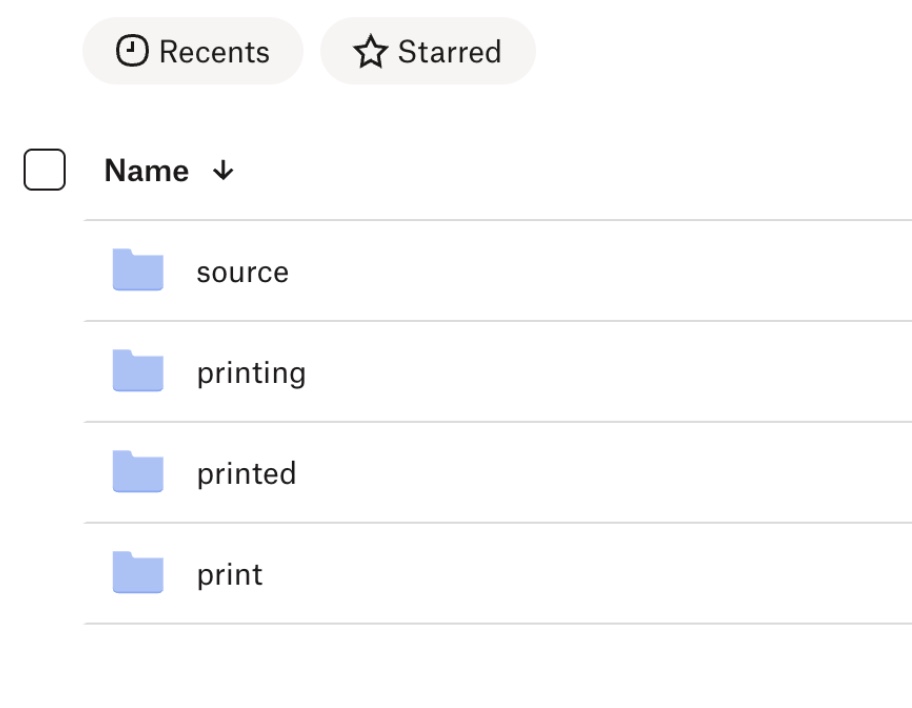
Inside your Dropbox folder, you will see four main folders:
- source — original images uploaded by the customer
- print — final print-ready files
- printing — files currently in production
- printed — files that have already been printed
📌 Important:
The print folder contains the final file that is fully ready for production and does not require any additional processing.
When Files Appear in Dropbox
Files do not appear immediately after image upload.
They are created:
✅ only after the order is placed and paid
❌ not during preview
❌ not when adding a product to the cart without completing the purchase
⏱ Typically, files appear in Dropbox:
- within 5–10 minutes after order completion
- automatically, without refreshing the page or performing any manual actions
Important Notes
- Dropbox = final production files
- Customers do not see Dropbox
- Any changes (templates, Black Borders, print settings) are reflected only in the files sent to Dropbox