-2-(3).png)
Buy Now, Upload Later: How It Works in NINEMAGS
What is Buy Now, Upload Later
Buy Now, Upload Later allows customers to place an order without uploading photos right away and upload images later using a link from the confirmation email.
This is useful when:
- the customer wants to buy now and prepare photos later;
- the order is placed in a hurry;
- images are collected from multiple people.
What Buy Now, Upload Later Does
When the feature is enabled, the customer can:
- add the product to the cart and complete checkout without uploading images;
- or upload images immediately, as usual.
After checkout, the customer receives an email with a link to upload photos later.

Step 1. Enable Buy Now, Upload Later for a Product
To enable the feature for a product:
- Open the NINEMAGS app.
-
Go to the Products section.
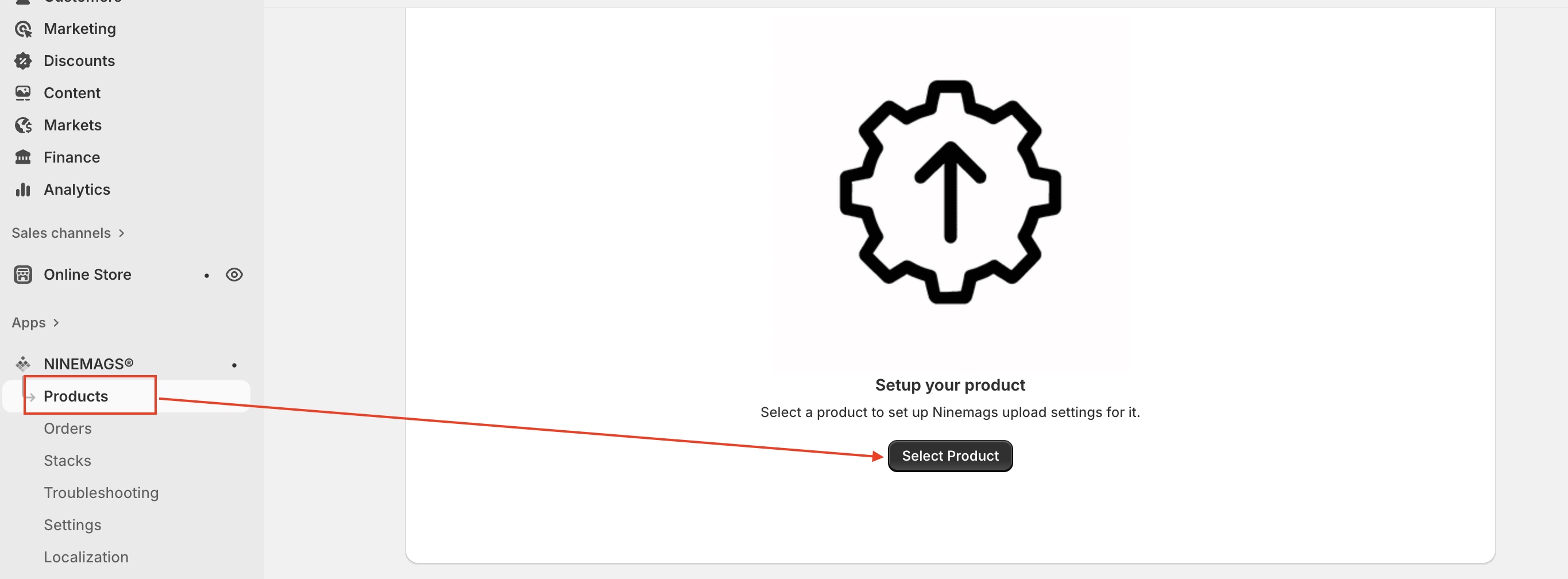
- Enable the option “Buy Now & Upload later” at the top of the page.

Important: Product Template Requirements
For the feature to work correctly, the NINEMAGS product template used by the product must include:
- the Upload pictures button;
-
and the Add to cart button.
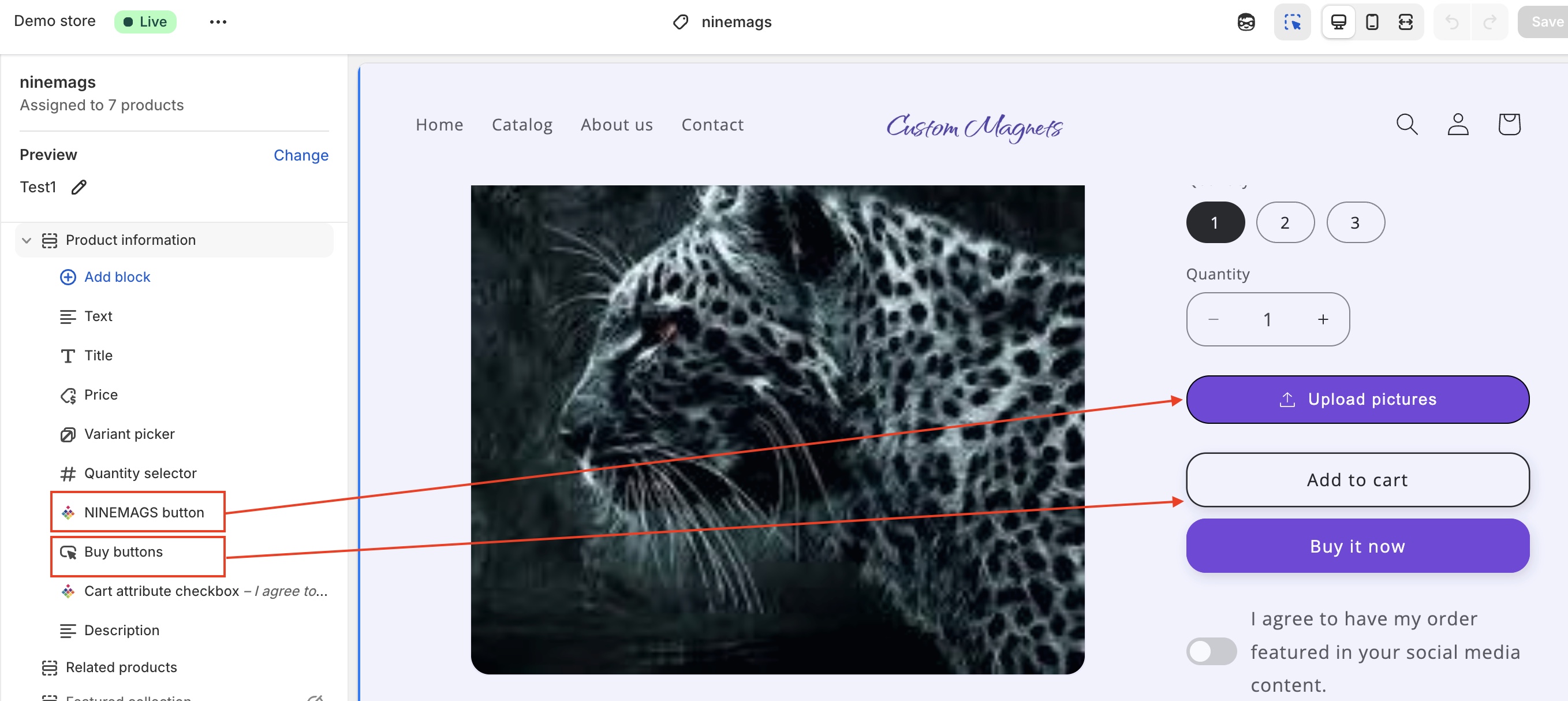
This allows the customer to:
- either upload photos immediately;
- or place an order and upload photos later.
Using Different Logic for Different Products
If you want:
- some products to use Buy Now, Upload Later;
- and others to require immediate upload,
create two NINEMAGS templates:
- one template with the Add to cart button;
- one template without the Add to cart button.
Then assign the appropriate template in the product settings.

Step 2. Email Settings
In the Email section, you configure:
- which email address sends the message;
- where the customer receives the upload link.
Email Address
Enter the email address that will:
- appear as the sender;
- be used for Buy Now, Upload Later emails.
Example:
hello@yourstore.com

Step 3. Find Order Page Settings
The Find Order Page is the page where customers upload their photos.
Here you can configure:
- the upload page URL;
- basic appearance (theme color, button radius).
How This Page Is Used
When the customer opens the link from the email, they immediately see:
- their order details;
- the correct product and variant;
- the upload interface.

You can also open the upload page manually from the app to preview how it looks.

Step 4. Upload Providers
In the Upload Providers section, you choose how customers can upload their photos.

Available options:
- URL
- Camera
- Dropbox
- Google Drive
- Google Photos
If no upload providers are selected, all providers are enabled by default.
How Customers Upload Photos Later
- The customer receives an email after checkout.
- The email contains an Upload Pictures button or direct link.
When the customer opens the link:
- the order search form is skipped;
- the customer immediately sees their order;
- they can upload the required number of images.

Where Uploaded Photos Appear
After upload:
- images appear inside the Shopify order;
- they are linked to the correct product and variant;
- NINEMAGS processes them automatically.