-2-(3).png)
How to Mark an Order as Fulfilled
NINEMAGS® Pages lets you manually update the fulfillment status of an order.
This is useful when an order is completed outside of the normal shipping flow — for example, when a customer picks up an order locally or when you want to mark an order as completed without waiting for tracking information.
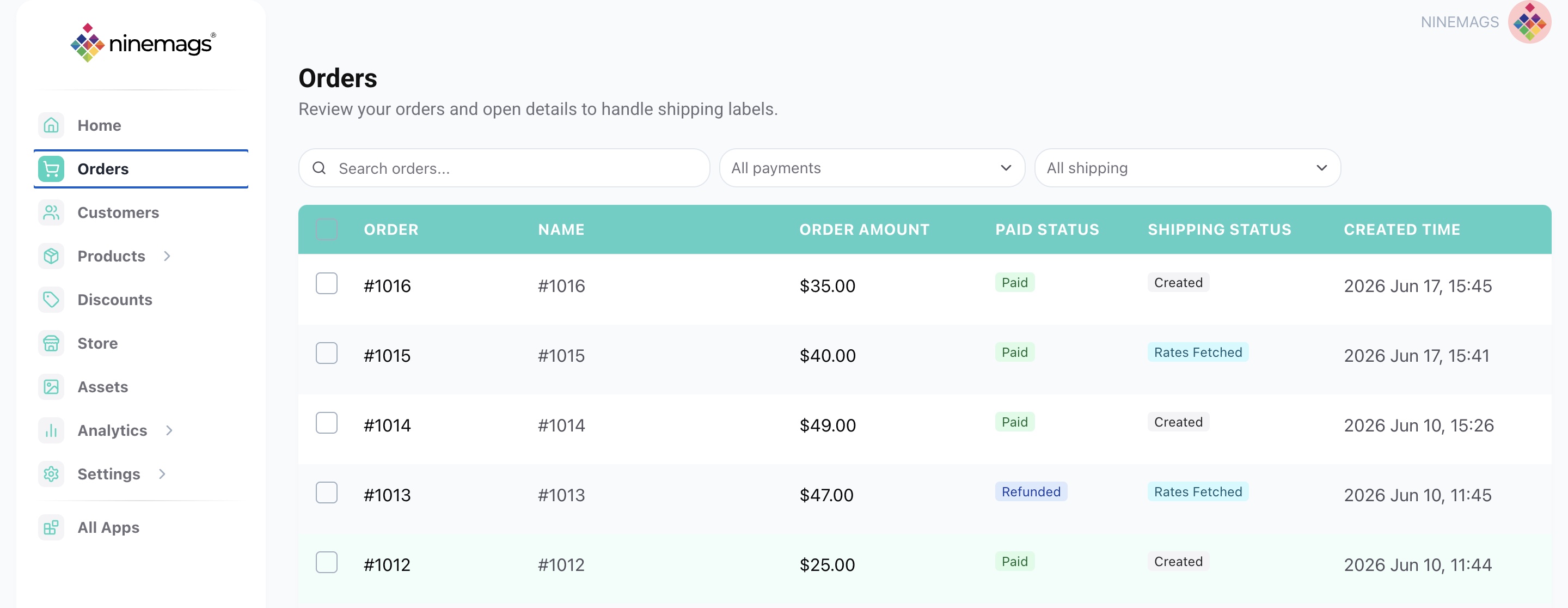
Step 1. Open Orders
In the sidebar menu, go to Orders.
Find the order you want to update and open it.
Step 2. Open the Order Details
Inside the order, find the fulfillment status section.
Next to the order status, you’ll see the option to manually update fulfillment.
If the order is not yet fulfilled, click Mark fulfilled.
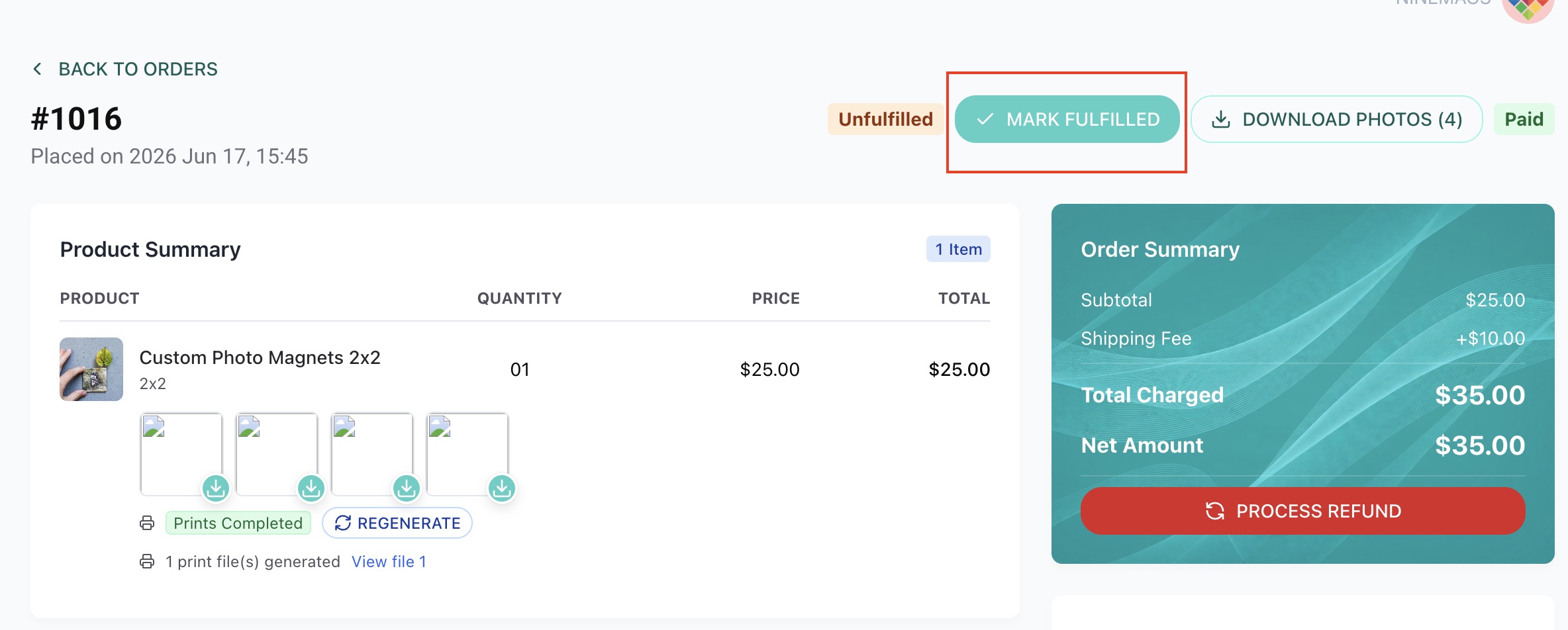
Step 3. Mark the Order as Fulfilled
Click Mark fulfilled when the order has been completed.
For example, you can use this when:
- the customer has picked up the order
- the order has already been handed to the customer
- fulfillment was completed manually
- no tracking number is required
After that, the order will be marked as fulfilled.
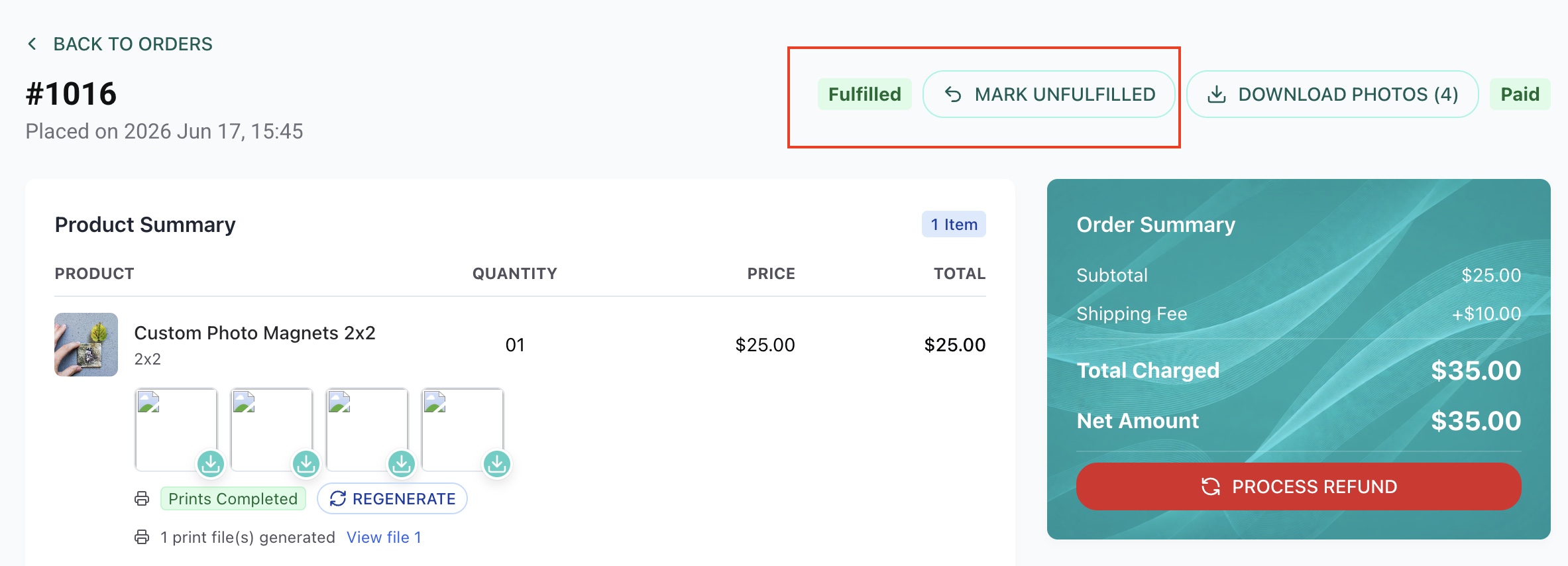
Step 4. Mark the Order as Unfulfilled
If you need to return the order to an unfulfilled state, click Mark unfulfilled.
This can be useful if the order was marked as fulfilled by mistake or if additional work is still required.
Good to Know
- Fulfillment status can be changed manually directly from the order page.
- Use Mark fulfilled when the order has been completed.
- Use Mark unfulfilled if the order needs to be returned to an unfulfilled state.
- Manual fulfillment is especially useful for local pickup orders where shipping tracking is not required.
You're All Set
You can now manually control the fulfillment status of orders in NINEMAGS® Pages.