-2-(3).png)
How to Manage Inventory and Set Purchase Limits
NINEMAGS® Pages lets you track product inventory, control how many units are deducted after each sale, and limit how many items a customer can purchase in a single order.
In this guide, you'll learn how to create an inventory item, connect it to a product variant, set purchase limits, and control what happens when an item goes out of stock.
Step 1. Open Inventory
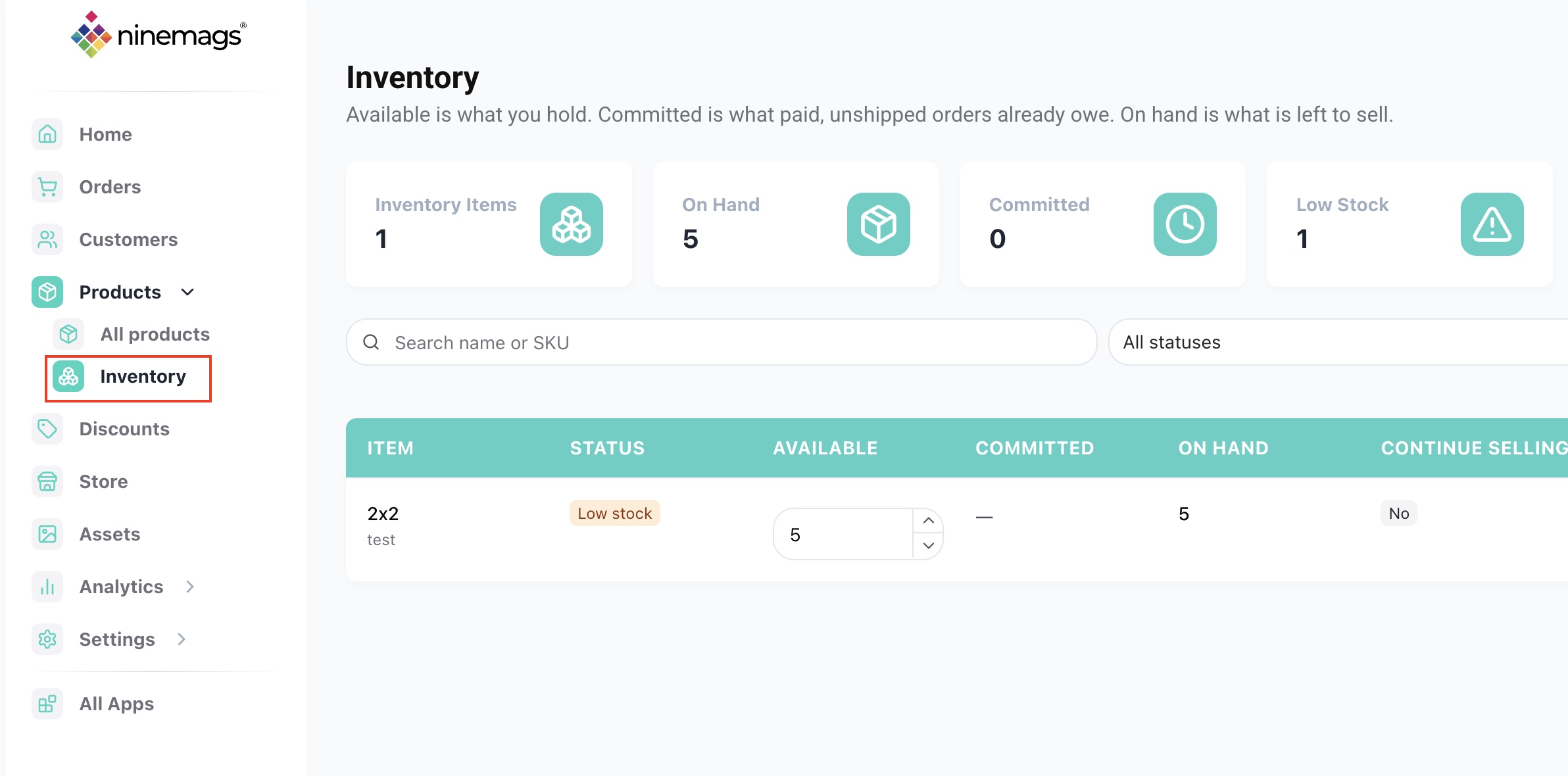
Go to Products → Inventory in NINEMAGS® Pages.
Here you can create and manage inventory items for your products.
Step 2. Create a New Inventory Item
Click New Inventory Item.
Enter the details for the item you want to track:
- Name — the name of the inventory item
- SKU — its SKU
- Units on Hand — the quantity currently available
If you want customers to continue purchasing the item after the available quantity reaches zero, enable Continue selling when out of stock.
Click Create.
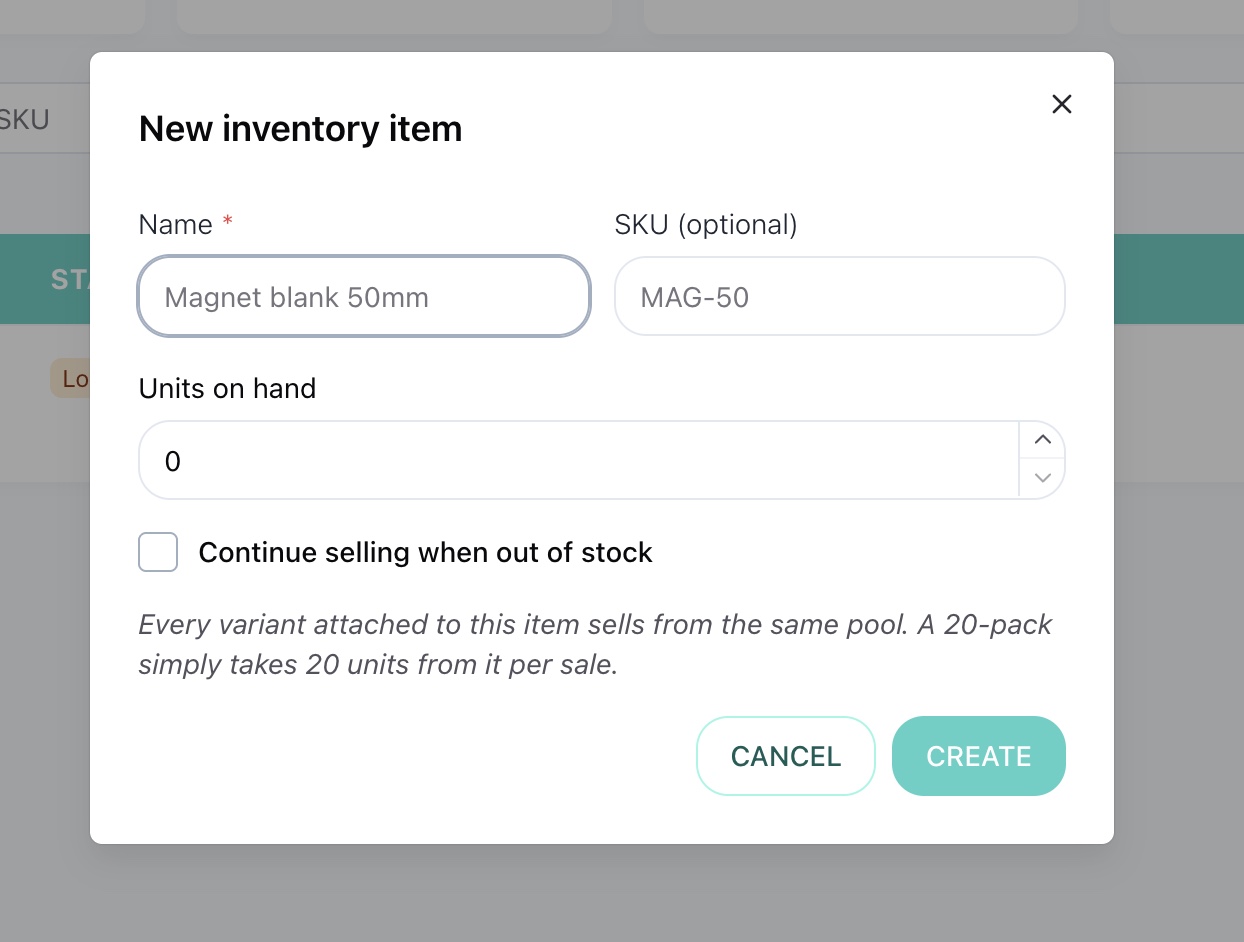
Once created, the new item will appear in your Inventory list.

Step 3. Connect a Product Variant to Inventory
There are two ways to connect a product variant to an inventory item.
Option 1. Connect It from the Product
Go to Products and open the product you want to edit.
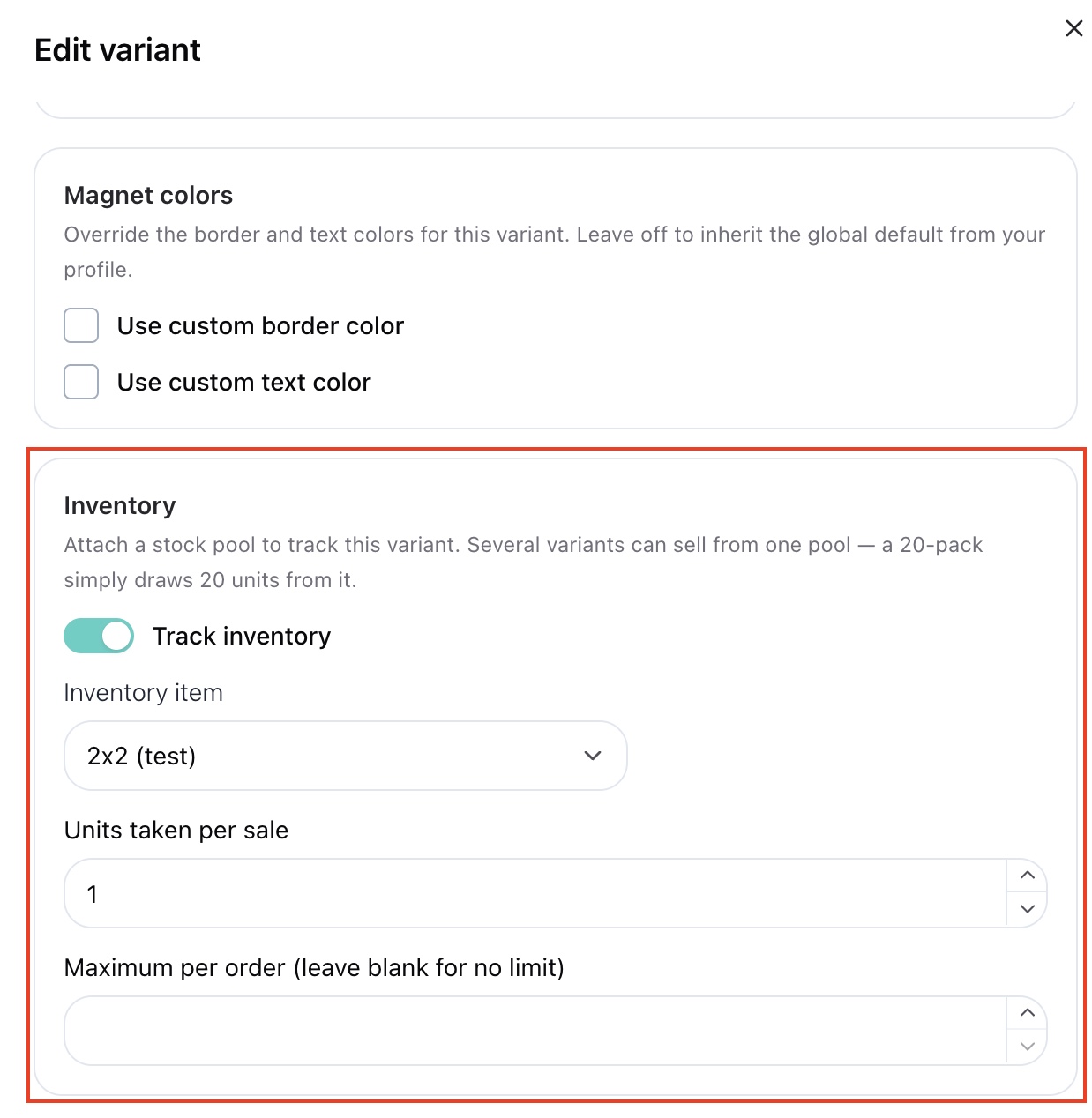
Open the required variant and enable Track Inventory.
Then select the inventory item you want to use.
You can also configure:
- Units Taken Per Sale — how many inventory units are deducted each time this variant is purchased
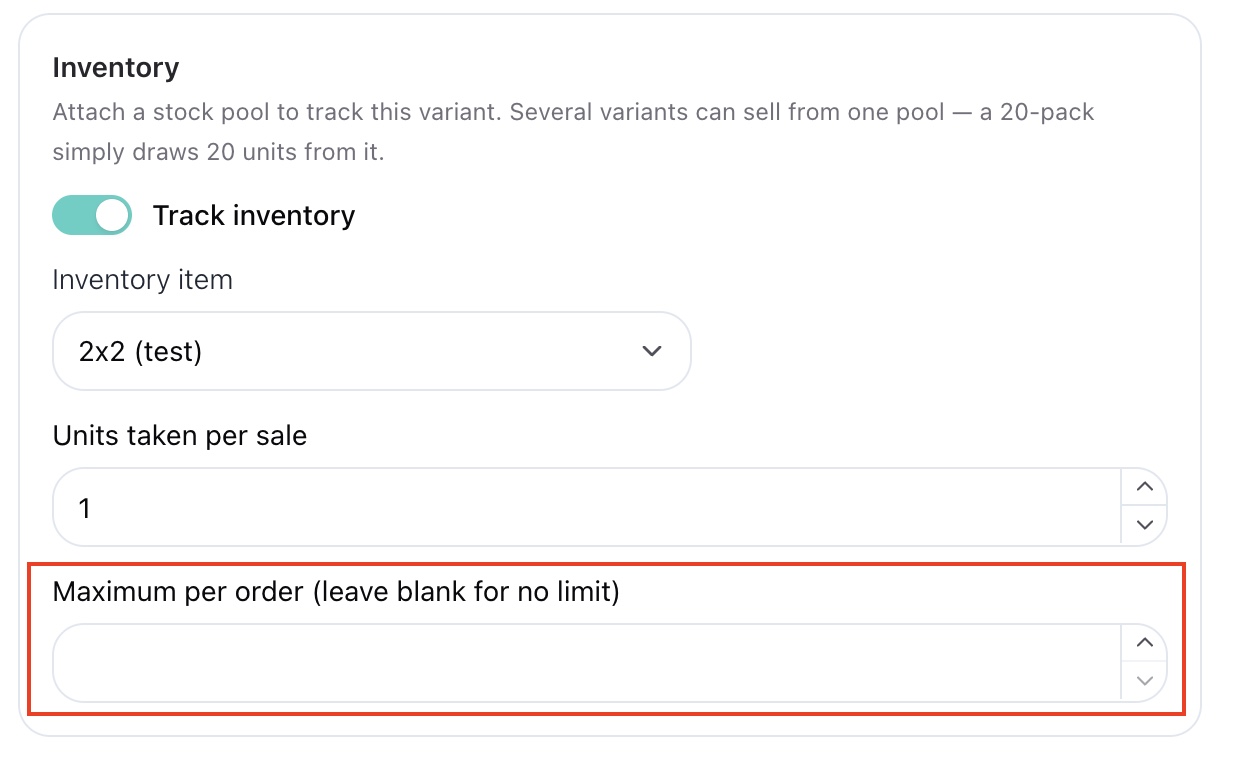
- Maximum Per Order — the maximum quantity of this variant a customer can purchase in a single order
Click Apply, then click Save to save the product changes.
What does Units Taken Per Sale mean?
Use Units Taken Per Sale when one sale should deduct more than one unit from your inventory.
For example, if one product variant uses three physical items from your stock, set Units Taken Per Sale to 3 .
Each time that variant is sold, three units will be deducted from the linked inventory item.
What does Maximum Per Order mean?
Use Maximum Per Order to limit how many units of a variant a customer can purchase in one order.
For example, if you set the value to 5 , a customer can purchase no more than five units of that variant in a single order.
Leave the field empty if you do not want to set a purchase limit.
Step 4. Connect a Variant from the Inventory Page
You can also connect variants directly from the Inventory section.
Go to Products → Inventory.
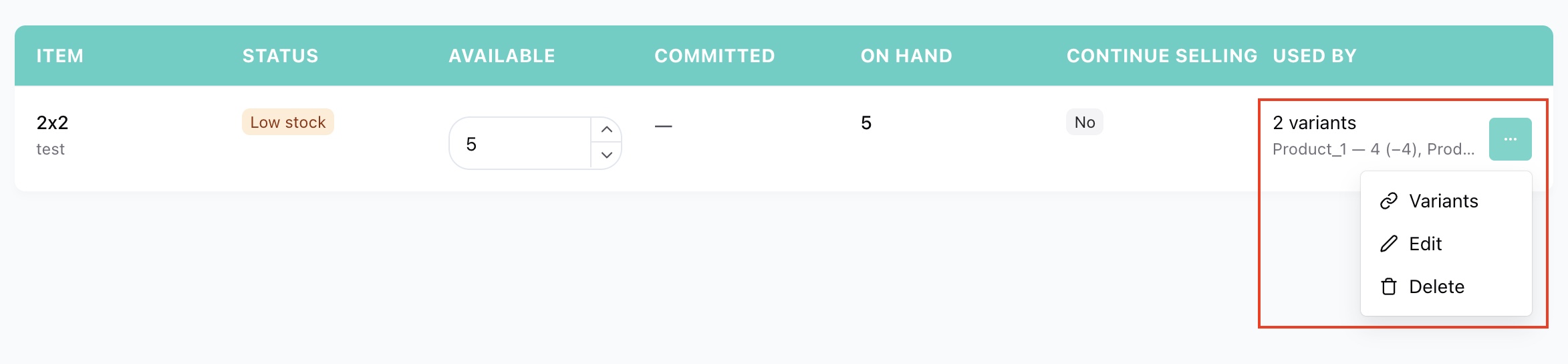
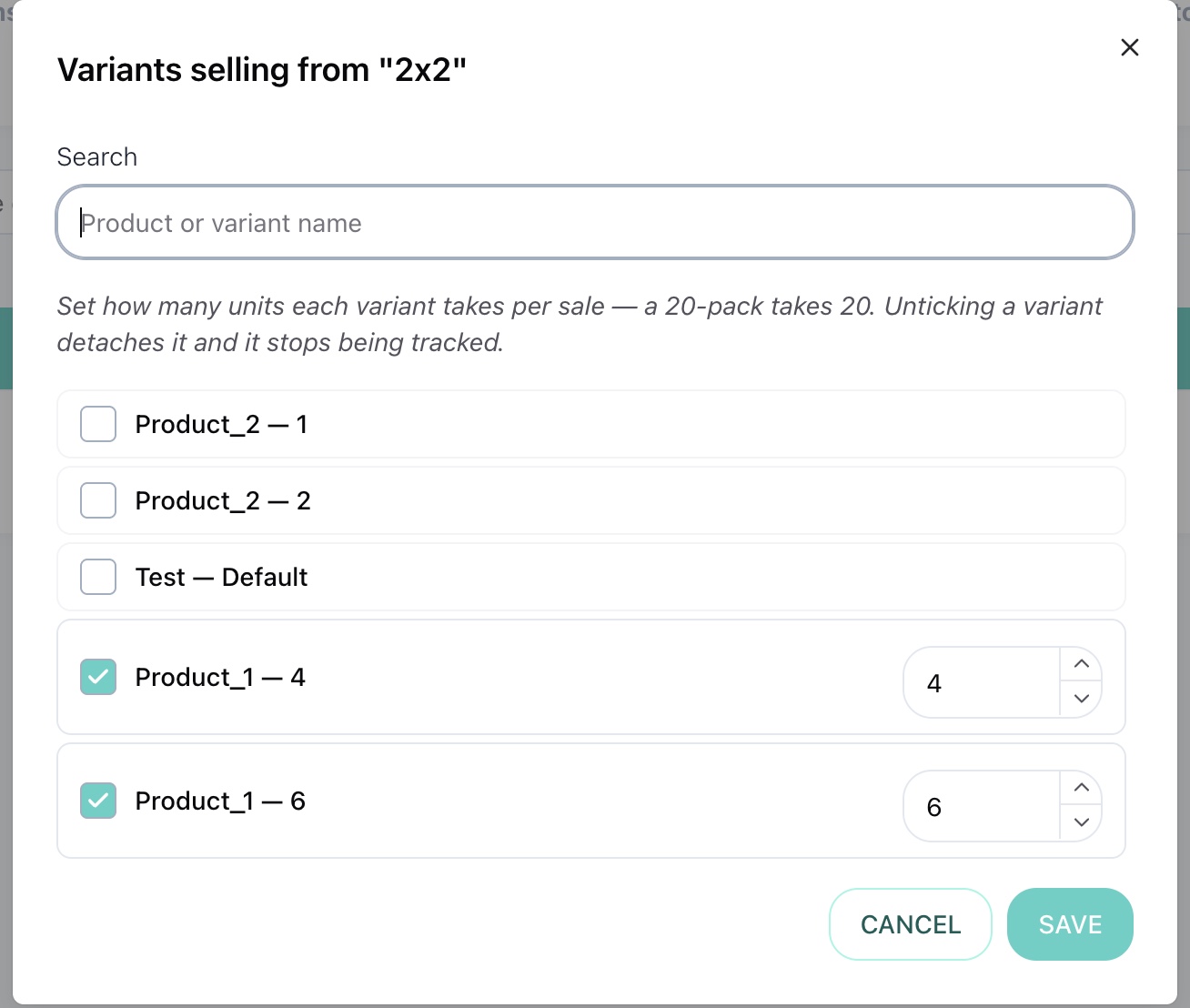
Find the inventory item you want to edit, open the three-dot menu, and select Select Variants.
Choose the variant you want to connect, set the inventory quantity, and click Save.
Step 5. Control What Happens When Inventory Runs Out
You can decide whether customers should still be able to purchase an item after its inventory reaches zero.
To stop selling when an item is out of stock:
- Go to Products → Inventory.
- Open the three-dot menu next to the inventory item.
- Click Edit.
- Turn off Continue selling when out of stock.
- Click Save.
Once the available inventory reaches zero, further sales of the linked item will be blocked.
Good to Know
- One inventory item can be linked to product variants.
- Units Taken Per Sale controls how many inventory units are deducted after each sale.
- Maximum Per Order limits how many units of a variant can be purchased in one order.
- Enable Continue selling when out of stock if you want to keep accepting orders after inventory reaches zero.
- Inventory quantities can be managed directly from the Inventory section.
You're All Set
Your inventory is now connected to your products, and you can control stock levels, purchase limits, and out-of-stock behavior directly in NINEMAGS® Pages.