-2-(3).png)
How to customize your store colors
How to customize your store colors
What this is
In NINEMAGS Pages you can set the colors of your store — background, buttons, links, text, borders, and so on. You can pick a ready-made palette or build and save your own to reuse later.

Where to find it
- Open NINEMAGS Pages.
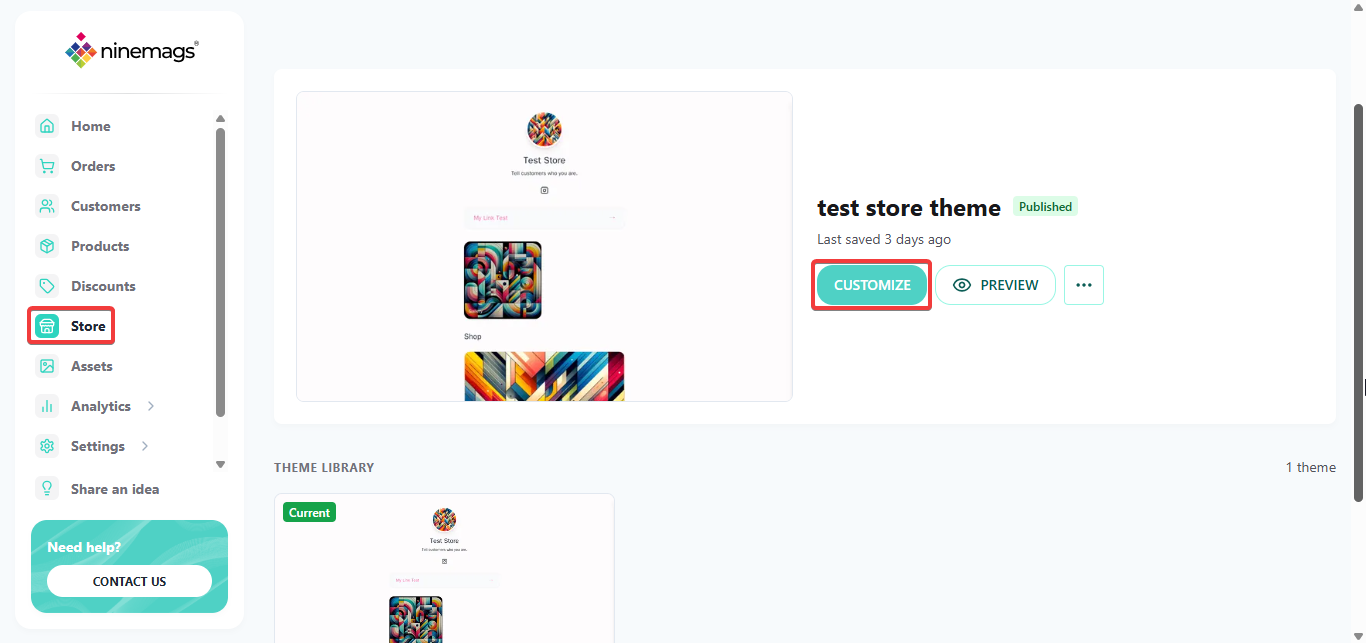
- In the left menu, click Store.
-
Then, click on Customize, it will open your theme editor
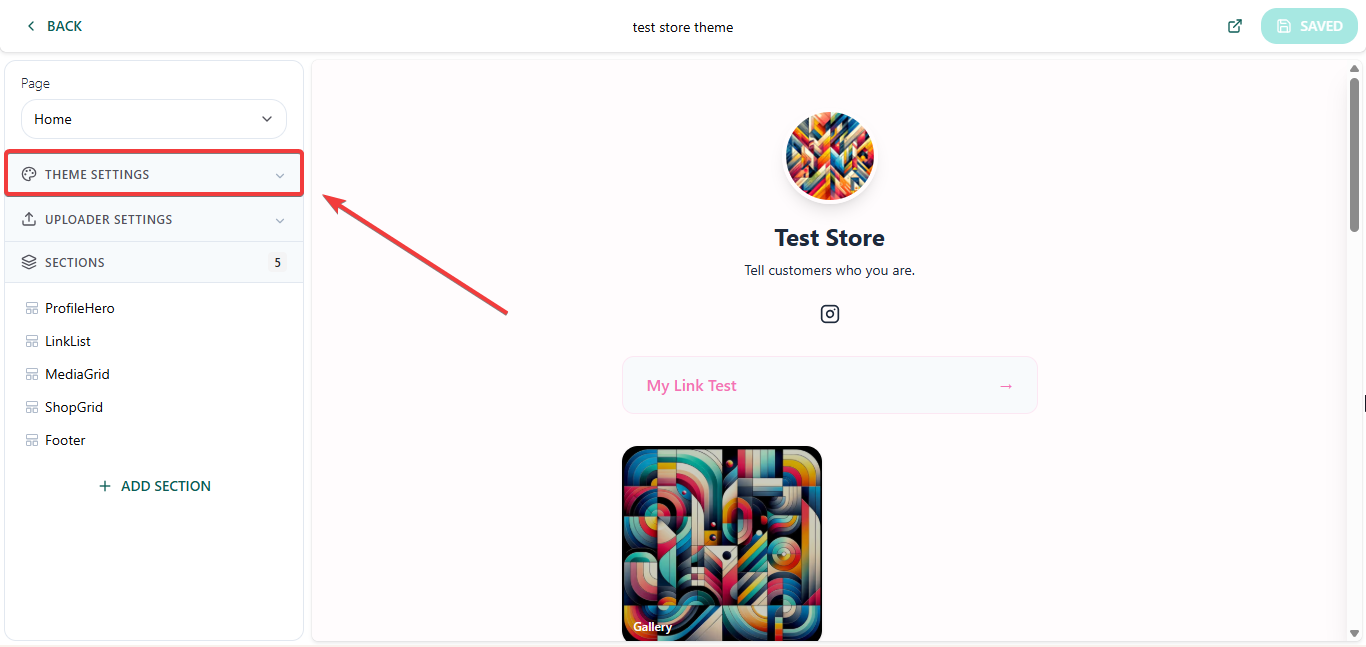
- On the left, you'll see the Theme Settings panel with the Color Palette and Your Palettes blocks.
Option 1. Pick a ready-made palette
The Color Palette block has ready-made palettes: Pink, Red, Purple, Black, White. Click any of them — the store colors update right away, and you'll see the result in the preview on the right.
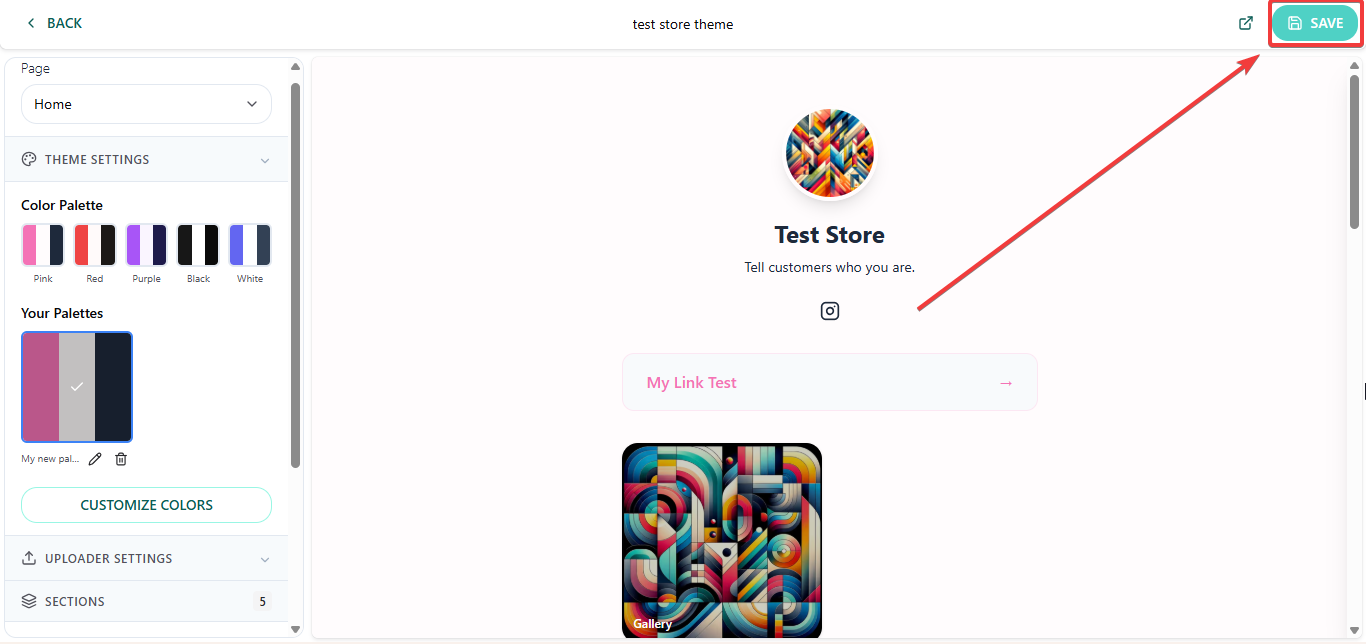
If the palette works for you, click SAVE in the top right corner of the editor to apply the changes.

Option 2. Build your own palette
If you want your own set of colors:
-
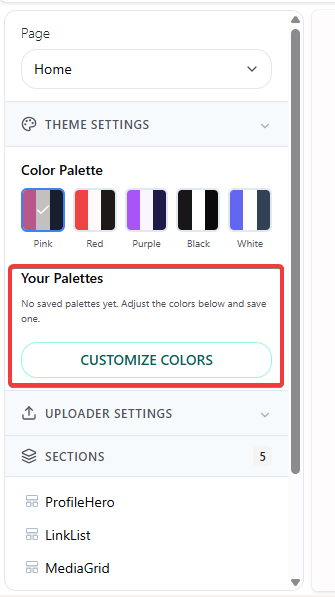
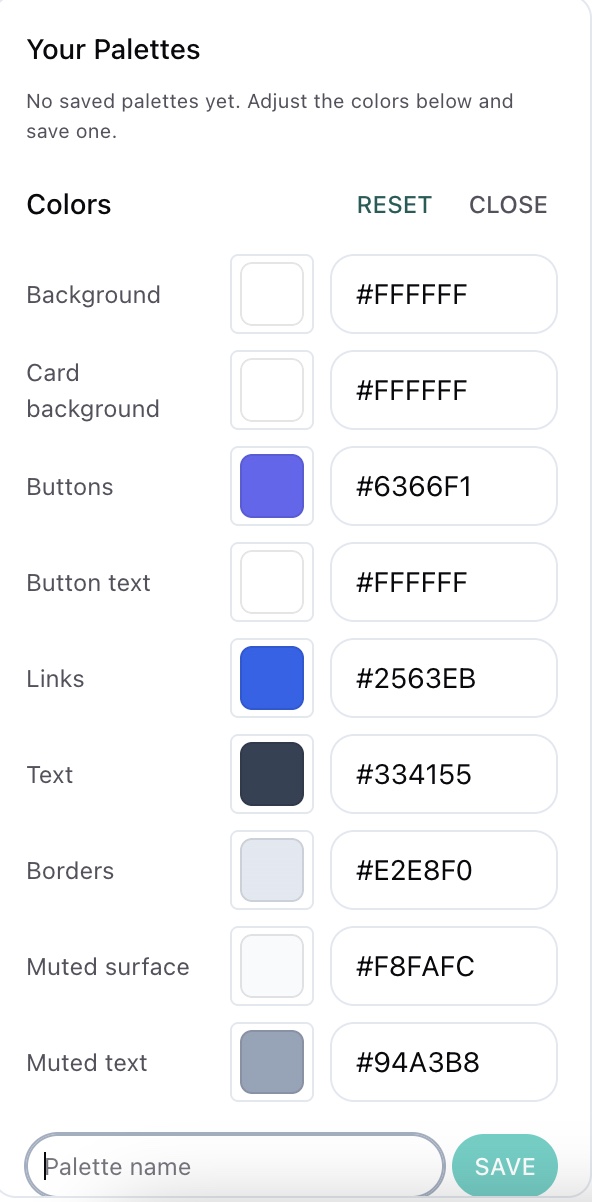
At the bottom of the Theme Settings panel, click Customize Colors — a detailed settings panel opens.
- Set the color for each element:
- Background — the main background of the store.
- Card background — the background of product cards.
- Buttons — the color of buttons.
- Button text — the color of text on buttons.
- Links — the color of links.
- Text — the main text color.
- Borders — the color of borders.
- Muted surface — the background of secondary elements.
- Muted text — the color of secondary text.
-
Set a color by clicking the preview square (a color picker opens) or by typing a hex code manually (for example,
#6366F1).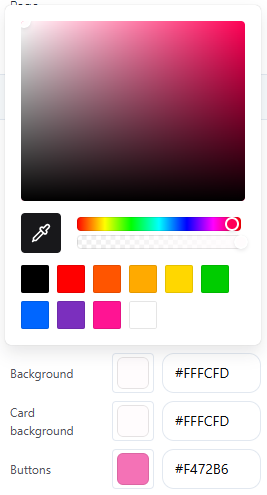
- Changes are reflected right away in the preview on the right.
In the same panel:
- RESET — reset to the default colors.
-
CLOSE — close the panel.
Saving your palette
To save your set of colors as a palette and reuse it later:
- At the bottom of the Customize Colors panel, enter a name in the Palette name field (for example, "Winter" or "Brand 2026").
- Click SAVE.
The palette appears in the Your Palettes block.

Managing your saved palettes
In the Your Palettes block, each palette is shown as a tile with its colors. Below the tile there are two icons:
- Pencil — rename the palette.
- Trash — delete it.
To apply a saved palette, just click its tile. The active palette is marked with a checkmark.
Editing the colors of an existing palette
- Click the palette in the Your Palettes block — it becomes active.
- Open Customize Colors and change the colors you need.
- Click SAVE in the top right corner of the editor — the changes are written back to the same palette.

Applying changes
All color changes — picking a ready-made palette, customizing colors, applying or editing a saved palette — only show up in your store after you click SAVE in the top right corner of the theme editor.