-2-(3).png)
Creating a Product
Products are what will be displayed in your store and what your customers can purchase. This guide covers how to create a product, add photos, set up variants with pricing, and manage statuses.
Step 1. Open the Products Section and Create a Product
In the sidebar menu, click Products. You'll see a list of your products (or an empty page if no products have been created yet).
Click the + Create Product button in the upper right corner. In the pop-up window, enter the product name and click Create.


Step 2. Fill in Product Information
After creation, you'll be taken to the product editing page. Fill in the Product Description — product description (tell customers what they'll receive). Click Save.

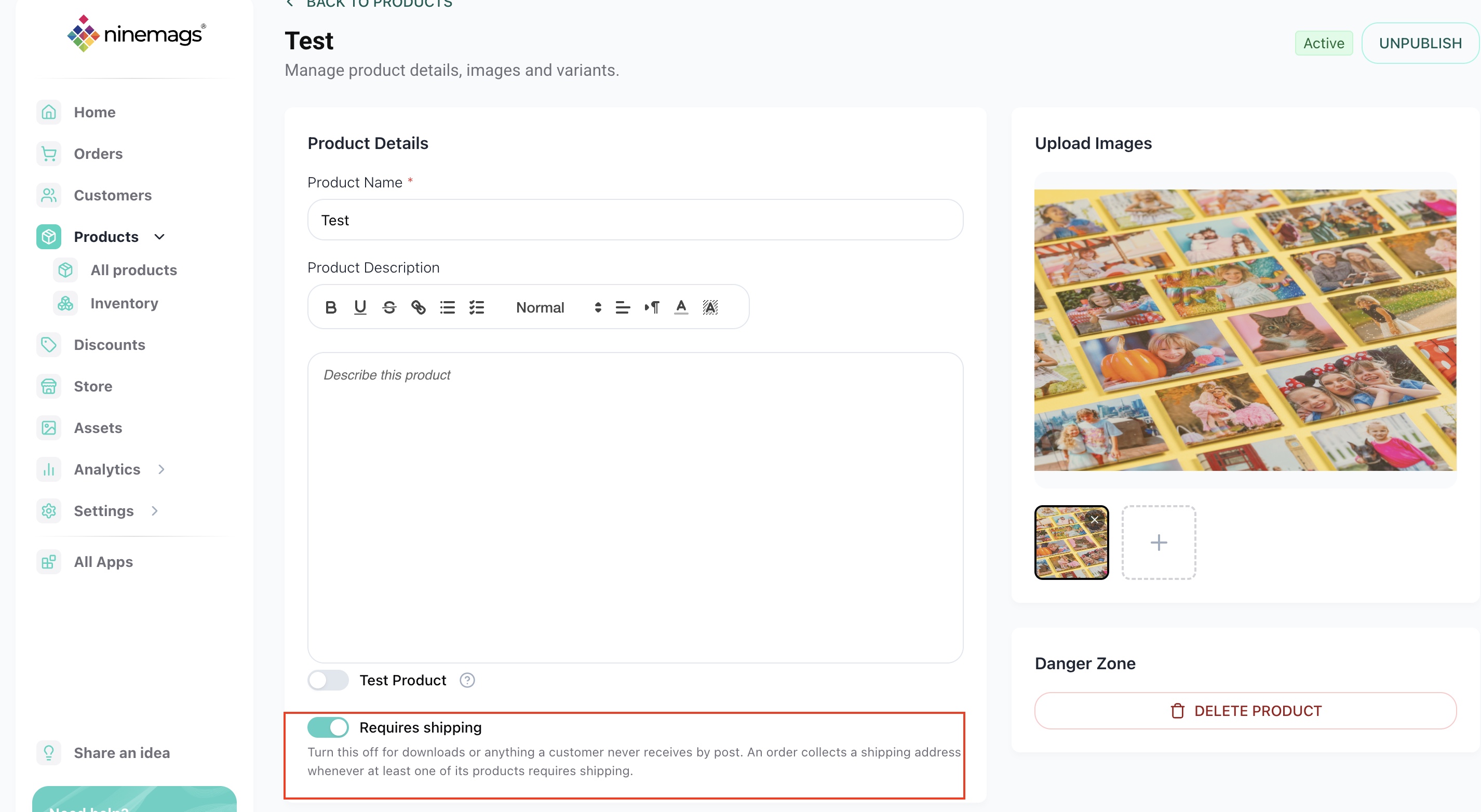
Choose Whether the Product Requires Shipping
By default, Requires shipping is enabled for new products.
Keep it enabled for physical products that may need to be shipped to the customer.
If you’re selling a digital file, download, or another product that does not need to be physically shipped, turn Requires shipping off.
When a cart contains only products that do not require shipping, customers won’t be asked to enter a shipping address during checkout.
If at least one product in the cart requires shipping, a shipping address will still be required.
Step 3. Upload Photos
On the right side of the page, you'll find the Upload Images. Click the upload area or the + button to add images.
In the Select asset window, you can upload new files (drag and drop or click "Drop image here or click to upload") or select previously uploaded images from your library. Click Save.


Step 4. Set Up Variants (Pricing & Variants)
At the bottom of the page, you'll find the Pricing & Variants section. By default, each product has one variant (Default). You can edit it or add new ones.

Editing a Variant
Click the pencil icon (✏️) next to the variant. In the Edit variant window, fill in:
- Name — variant name (e.g., "Set of 4", "Set of 6")
- Price — variant price in dollars
- Upload Settings — enable the Enable Uploads toggle if the customer needs to upload files (e.g., photos for printing on magnets)
- Upload Amount — how many files the customer needs to upload
- Type — product type (e.g., Button)
- Paper — paper type (e.g., Letter)
- Size — size (e.g., Square 2x2")
The variant editing window also has an Advanced section with additional settings:
- Custom Margins — enable to set custom margins.
- Custom Borders — enable to add borders around images.
- Clone Amount — number of product copies in the order. For example, if you sell a set of 3 magnets with 6 pieces each, enter the desired quantity.
- Clone Images Per Sheet — enable if you want the same image to repeat multiple times on a single sheet.
Click Apply to save settings.

Adding a New Variant
Click the + Add Variant button to create an additional variant. Fill in the same fields and click Apply.

💡 Example
For a "NINEMAGS PAGES Product" product, you could create two variants: "Set of 4" for $10 (upload 4 photos) and "Set of 6" for $20 (upload 6 photos).

For a ready-made product (e.g., a sticker pack): (e.g., a Magnets pack): simply set the Name and Price, leave the Enable Uploads toggle off — no upload settings needed.

Step 5. Publish the Product (Draft → Published)
New products are created in Draft (draft) status. To make it appear in your store, click the Publish button in the upper right corner of the product page.

After publishing, the status will change to Active, and the button will change to Unpublish — use it to return the product to draft status.

Step 6. Test Mode (Test Product)
If you want to test purchasing a product without real charges, enable the Test Product toggle on the product editing page (located below the Description field). Next to the toggle, there's a ? icon — click it to see details about test mode.

When test mode is enabled, the product will use Stripe Sandbox during checkout. No real charges will be made.
To place a test order, use the following card details:
- Card number: 4242 4242 4242 4242
- Expiry date: any valid future date
- CVC: any 3 digits
- Address: any real address
Test orders will be marked with a Test badge in the orders list (Orders).

⚠️ Important
Test products only work in stores with Draft status. For more details, see the "Testing and Placing Orders" guide.
Done!
Your product is created and configured. Don't forget to click Save after making changes — an Unsaved changes bar with Discard and Save buttons will appear at the top of the page.