-2-(3).png)
Shipping — Setting Up Delivery
NINEMAGS® Pages lets you offer shipping, local pickup, or both.
If you offer shipping, you’ll need to set up a shipping origin address, shipping rates, and a parcel template. If you only offer local pickup, you can turn shipping off completely and add pickup locations with instructions for your customers.
Step 1. Connect Your Shippo Account
Before setting up shipping rates and parcel templates, you need to connect your Shippo account. Shippo is the service NINEMAGS® Pages uses to calculate shipping rates and generate labels.
In the Shippo Connection section, paste your token into the appropriate field:
- Test token — use this to try the full shipping flow without real charges. Required for test orders.
- Live token — use this for real shipments to customers.
Click Save.

💡 Just getting started? A test token is enough to complete the full test cycle. You can get both tokens in your Shippo account under Settings → API. Get your tokens
⚠️ Note: Without a Shippo token, shipping labels cannot be generated — even for test orders.
Step 2. Open the Shipping Section
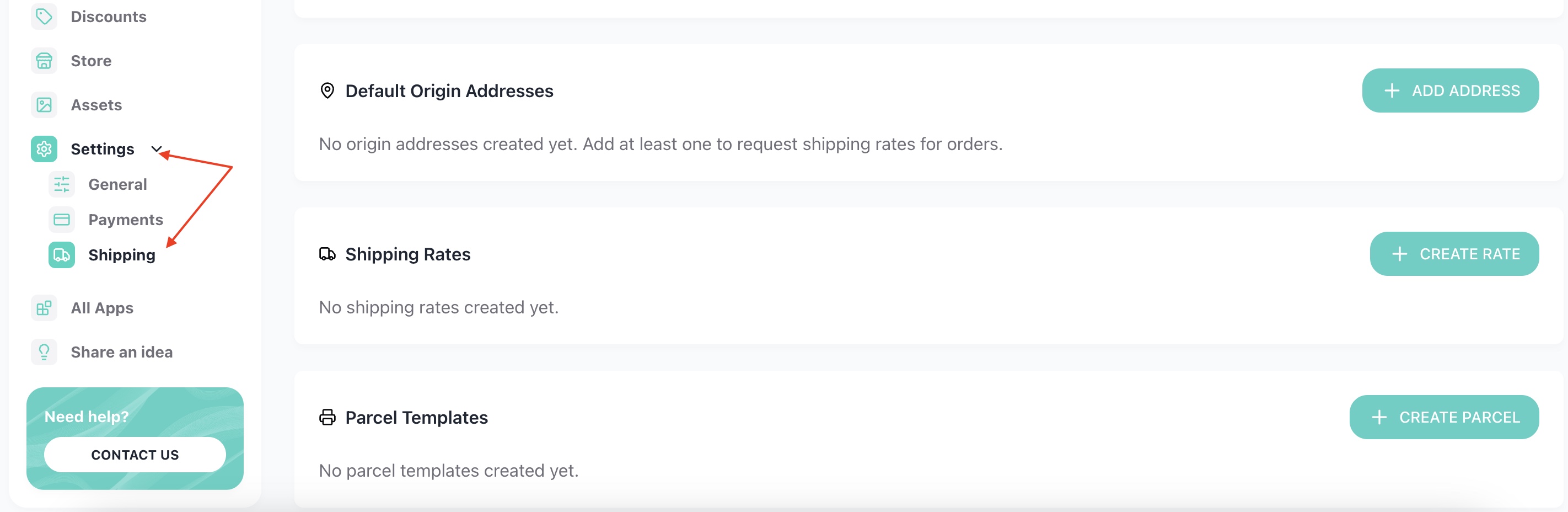
In the sidebar menu, go to Settings → Shipping. Here you'll find three sections: origin address, shipping rates, and parcel templates.
Step 3. Add a Shipping Origin Address
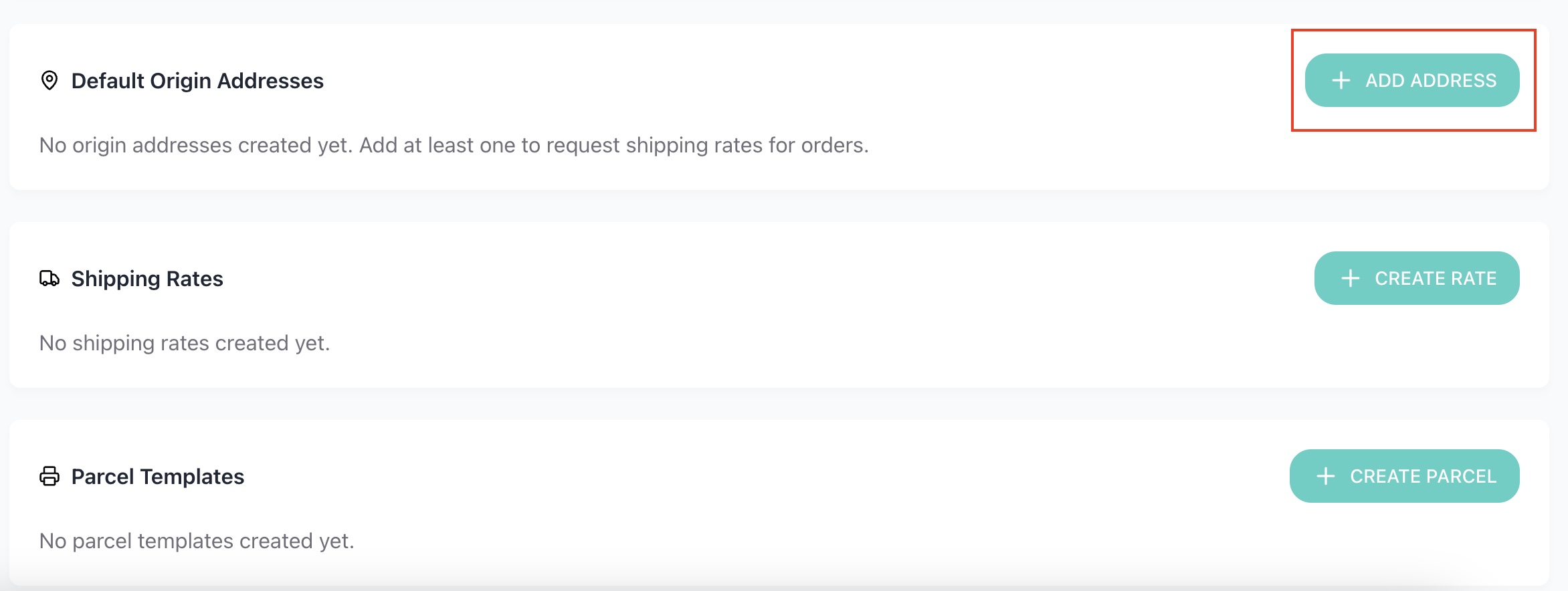
In the Default Origin Address, click the Add Address button (or fill in the fields if no address has been entered yet). This is the address you'll be shipping orders from.
- Label — address name (e.g., "Warehouse A")
- Name — sender's name
- Email — contact email
- Phone — phone number
- Street 1 — street address
- Street 2 — apartment/suite (optional)
- City — city
- State — state/province
- Zip — ZIP/postal code
- Country — ISO country code (e.g., US)
Click Create.

Step 4. Set Up Shipping Rates
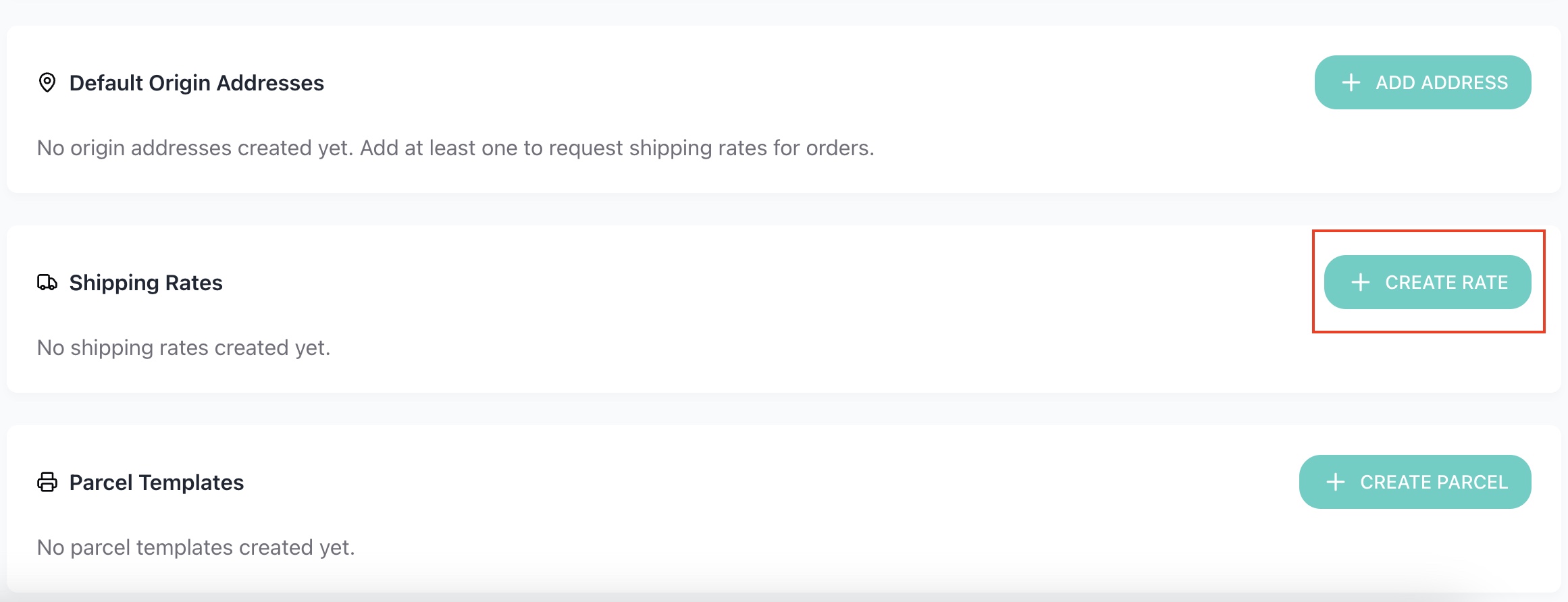
In the Shipping Rates, click the + Create Rate button to add a new shipping rate.
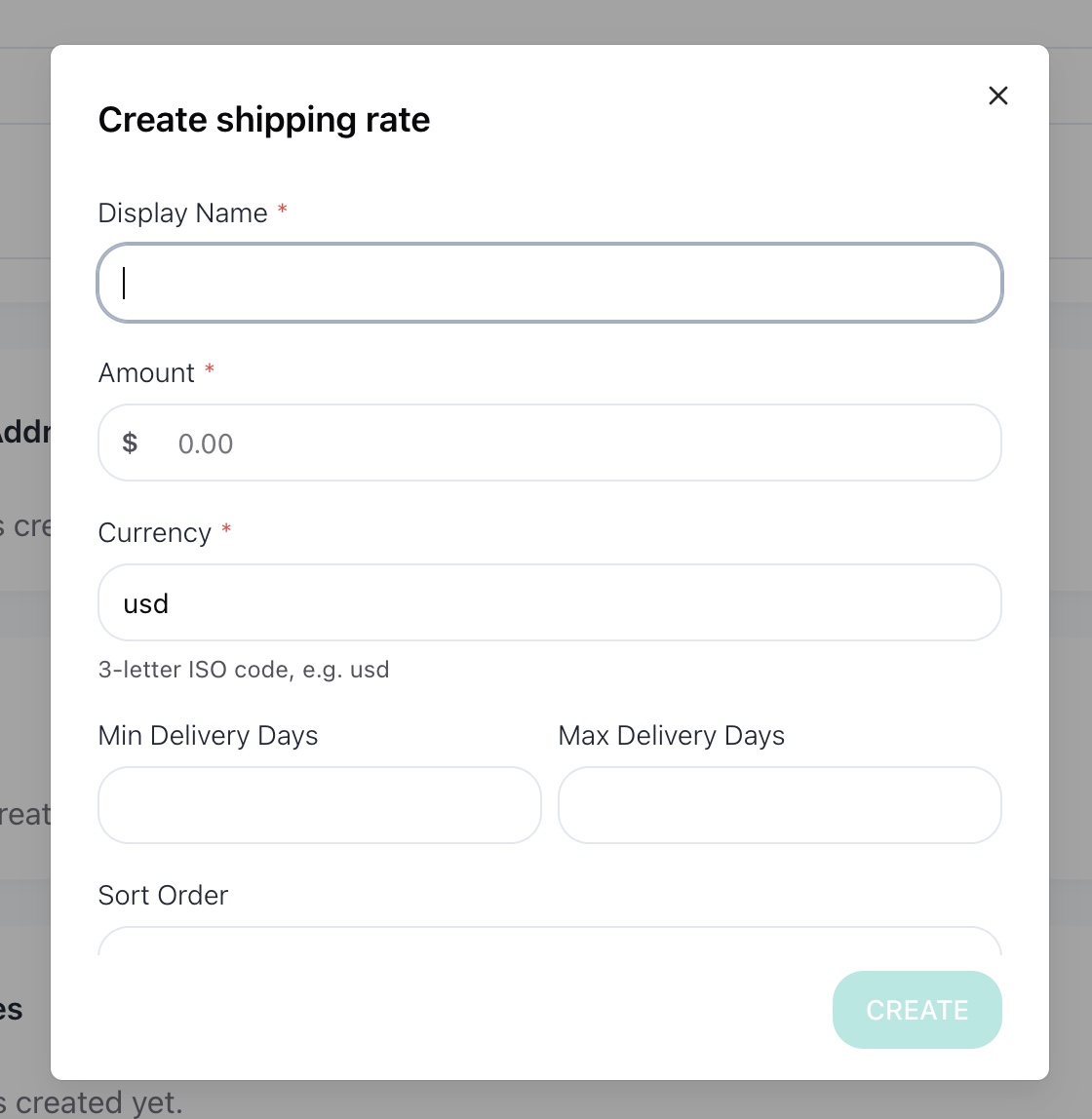
In the pop-up window, fill in:
- Display Name — rate name (e.g., "Express Delivery")
- Amount — shipping cost
- Currency — currency (e.g., usd)
- Min Delivery Days — minimum delivery time in days
- Max Delivery Days — maximum delivery time in days
- Sort Order — display order (0 = first)
Click Create.
💡 Rate Examples
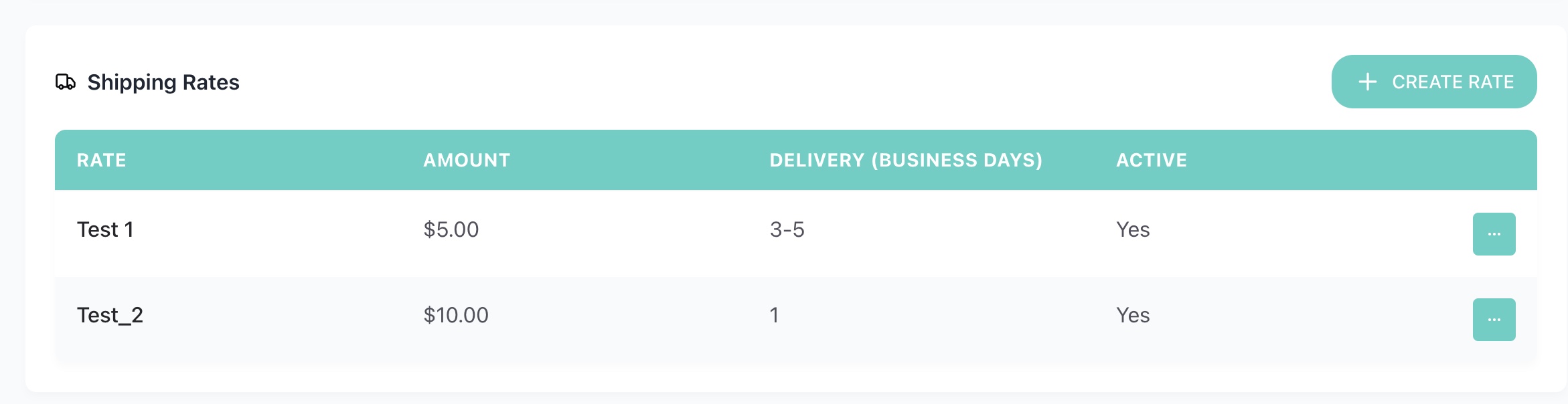
You can create multiple rates for different delivery speeds. For example: Express Delivery ($7, 1-3 days), Standard Delivery ($3, 5-7 days), Economy Shipping ($1, 7-10 days).
Once created, the rates are displayed in a table:
Step 5. Create a Parcel Template
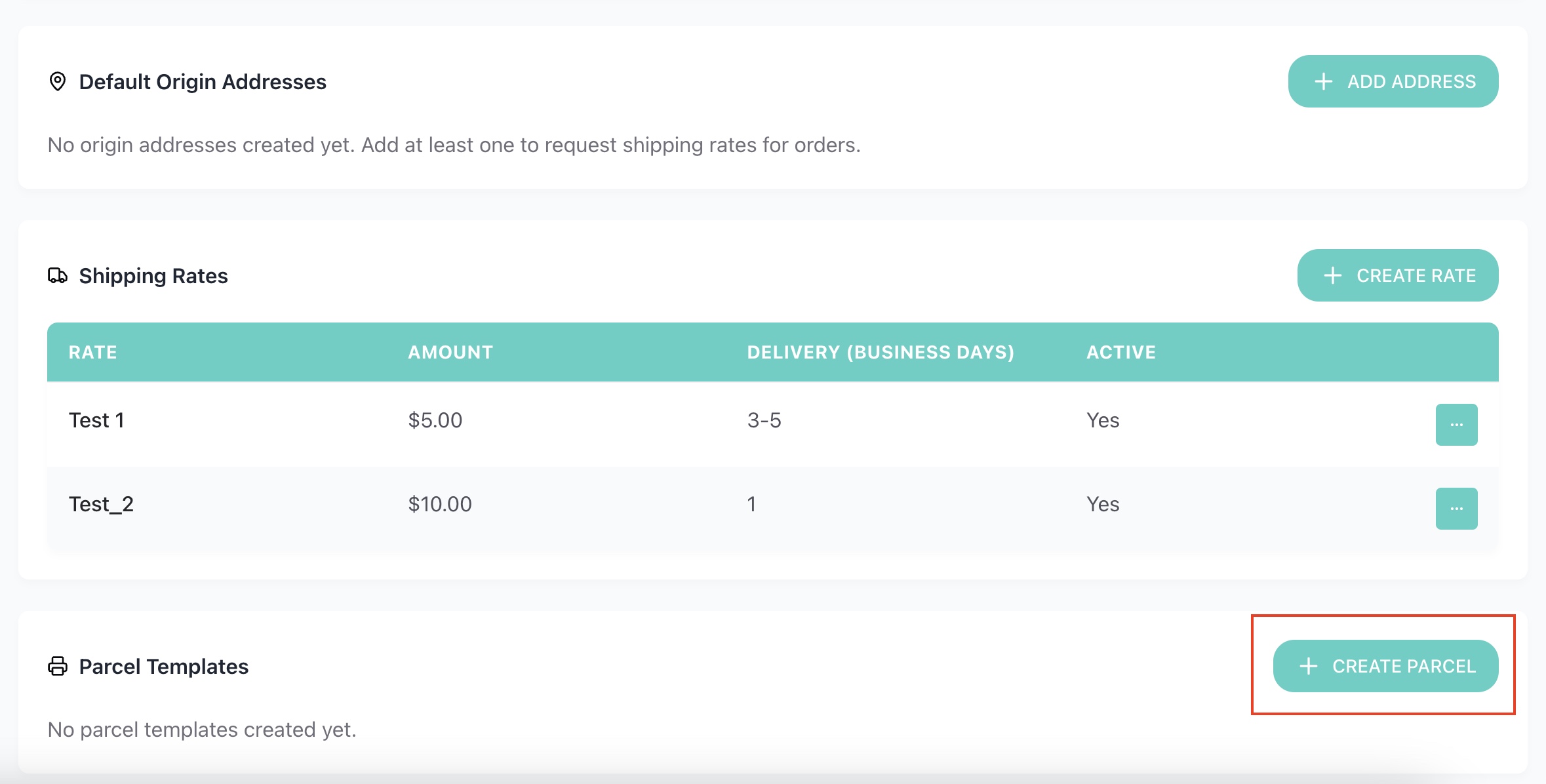
In the Parcel Templates, click the + Create Parcel. The parcel template is needed to calculate shipping costs when generating a shipping label.
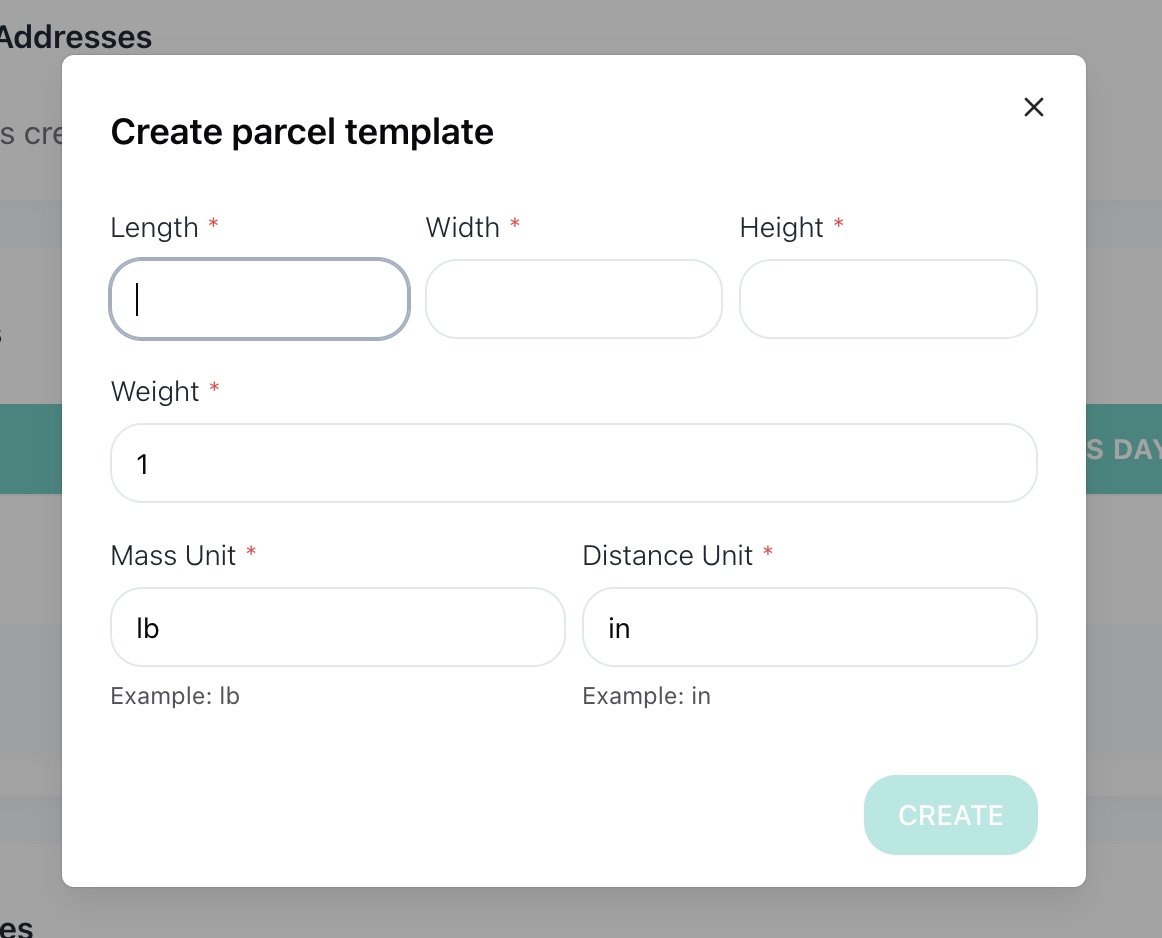
In the pop-up window, fill in:
- Length — package length
- Width — package width
- Height — package height
- Weight — package weight
- Mass Unit — weight unit (e.g., lb)
- Distance Unit — length unit (e.g., in)
Click Create.
💡 Example
For a small box, you can enter: 5 x 5 x 5 in, weight 5 lb. You can create multiple templates for different package sizes.
Local Pickup
You can also let customers pick up their orders instead of having them shipped.
Go to Settings → Shipping. Here you can manage shipping and local pickup independently.
- Offer shipping — enable this if you want to deliver orders to customers.
- Offer local pickup — enable this if customers can collect their orders in person.
You can offer shipping, local pickup, or both.
At least one option must remain enabled, so you cannot turn off the last available fulfillment method.

Offer Local Pickup Only
If you only serve local customers, you can turn shipping off completely and leave Offer local pickup enabled.
Customers will then be able to choose pickup without seeing shipping options at checkout.

Add a Pickup Location
In the Local Pickup section, add the location where customers can collect their orders.
Enter:
- Address — the pickup location
- Instructions — additional information for the customer
You can use the instructions to add details such as opening hours, where to enter, or who to contact on arrival.
Changes are saved automatically.

Done!
Shipping is set up. Now when placing an order, customers will see available shipping options with prices and delivery times, and you'll be able to generate shipping labels for fulfillment.