-2-(3).png)
Post-Installation Check: Make Sure NINEMAGS Is Working
After installing NINEMAGS, it is important to make sure everything is connected correctly and working as expected.
This guide helps you verify that your store is ready to accept and process orders with photo uploads.
1. How to know the installation was successful
The installation can be considered successful if all of the checks below are completed without errors.
1.1 NINEMAGS appears in Shopify Apps
- Open your Shopify admin
- Go to Apps
- Make sure NINEMAGS is listed and opens without errors
- Open the NINEMAGS app.

2. Check the Dropbox connection
A working Dropbox connection is required for NINEMAGS to create print-ready files.
What to do
- In Shopify Admin, open Apps → NINEMAGS.
- On the main NINEMAGS page, look for the Info section on the right side.

What should be visible
Make sure all of the following are present:
- Dropbox folder — a folder name is displayed
- Connected domain — your Shopify store domain is shown
- Myshopify domain — your Shopify ID is shown
If any of these items are missing or incorrect, NINEMAGS will not be able to process orders properly.
Important
If Dropbox is not connected, print files will not be created.
3. Place a test order
Next, you need to check that NINEMAGS works correctly on the storefront.
What to do
- Open a product that has NINEMAGS connected on your store’s front end.
-
Upload test images.
Make sure that:
- images upload successfully;
- a preview is displayed;
- images are correctly cropped for the selected product format.


- Add the product to the cart and check the preview in the cart.

-
Complete a test order, you can make it completely free by creating and using 2 discounts.
You would need to create:
- Free order
- Free delivery
To start, go to Discounts in your Shopify, then click on Create discount at the top-right corner:

-
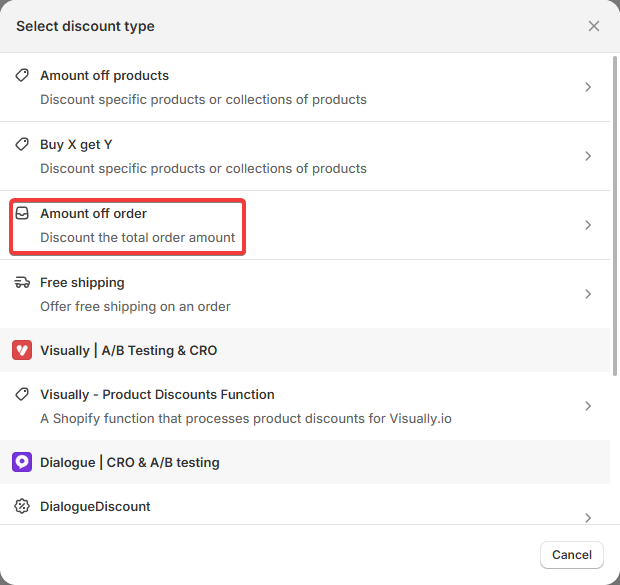
For a Free order, you would need to select Amount off order:
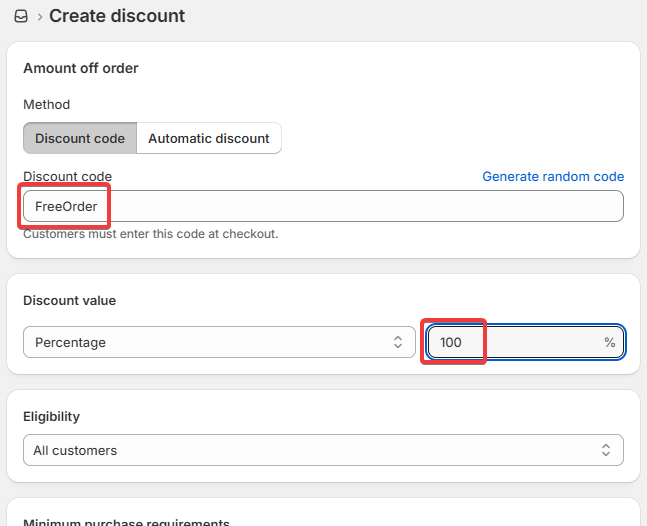
Give your discount a name, set discount % to 100 to make it free:
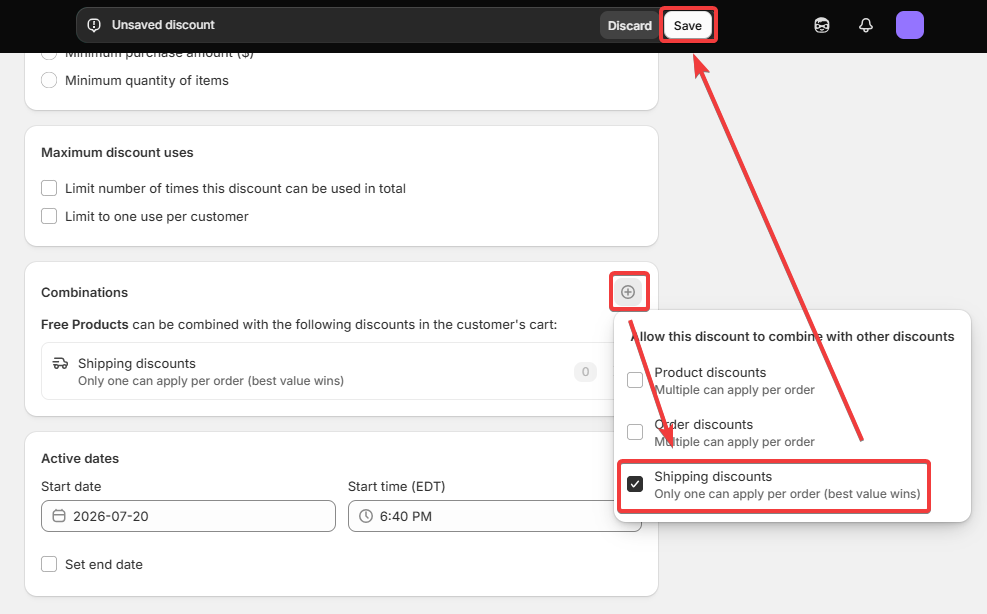
Then, scroll lower and find Combinations, click + → enable Shipping discounts → Save
-
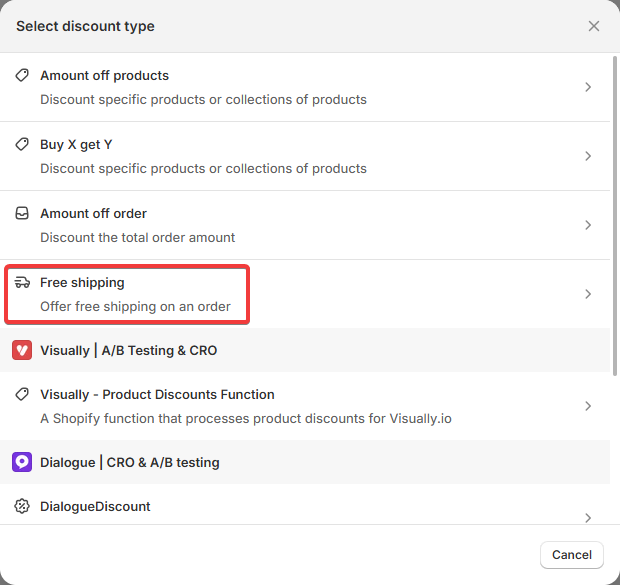
For a Free delivery, you would need to select Free Shipping:
Give your discount a name:
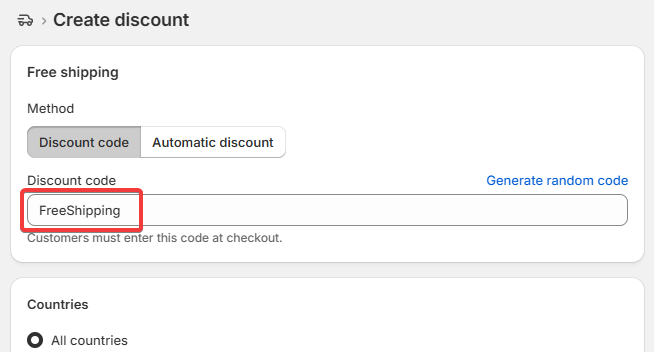
Then, scroll lower and find Combinations, click + → enable Order discounts → Save
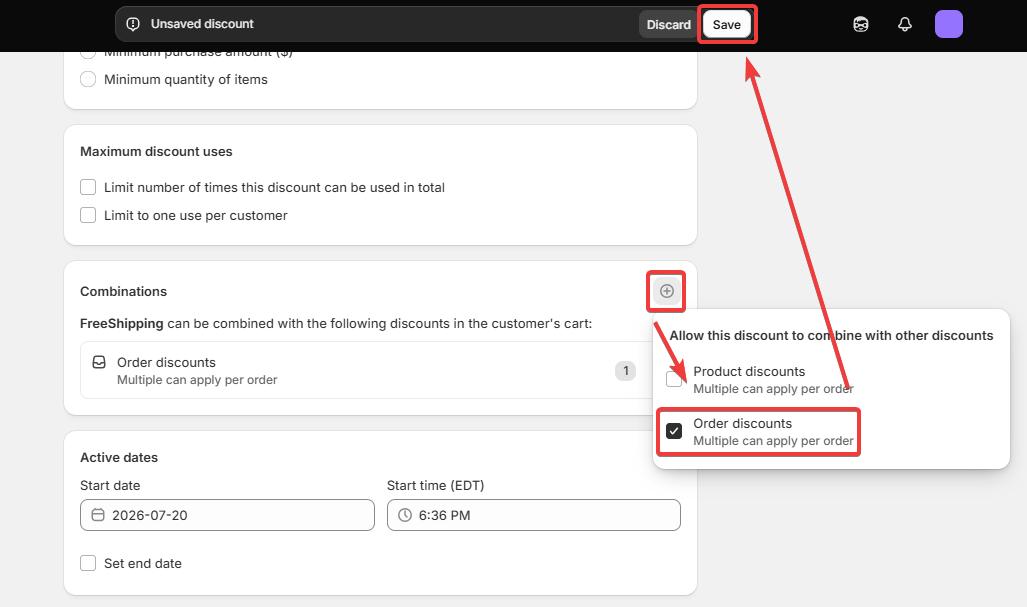
All done! Now you can now use your new discounts during checkout to test your orders without charging yourself!

4. Check order processing in NINEMAGS
After placing the test order, confirm that it was processed by the app.
What to do
- Go to Apps → NINEMAGS → Orders.
- Find your test order in the list.

Important notes
- NINEMAGS processes only Unfulfilled orders.
- Fulfilled orders are not processed by the app.
Make sure that:
- the order appears in the list;
- the order status is Completed.
5. Check files in Dropbox
Finally, verify that the correct files were created in Dropbox.
What to check
-
Open the order folder in Dropbox.
Inside the order folder, you should see the following subfolders:
- source — original images uploaded by the customer
- print — final print-ready files
- printing — files currently in the printing process
- printed — files that have already been printed
- events-prints — final print-ready files for NINEMAGS Live

Important
The print folder must contain the final file that is fully ready for printing and does not require any additional processing.
All set ✅
If all steps above are completed successfully, NINEMAGS is installed and working correctly.
If something doesn’t look right at any step, review your settings or contact NINEMAGS support for help.